
Submitting your availability
Tell your manager which hours you can work each week, and reuse last week when nothing changes.
Availability is your standing answer to "when can you work?", set one week at a time. Your manager reads it while building the schedule. For the quick phone walkthrough see How do I submit my availability? — this page covers the rest.
What each day can say
Every day sits in one of three states:
- Available, with a From–To window. Toggling a day available starts you at 09:00–17:00; change it to your real window.
- Unavailable — no times, shown as Not working this day.
- Not set — you haven't answered yet. Your manager sees No availability set and can still schedule you.
Working two blocks in one day? Select Add split shift to add a second window, for example 09:00–12:00 plus 15:00–19:00. The second window must start after the first one ends — the web editor blocks the save and names the days that clash. Remove split drops it again.
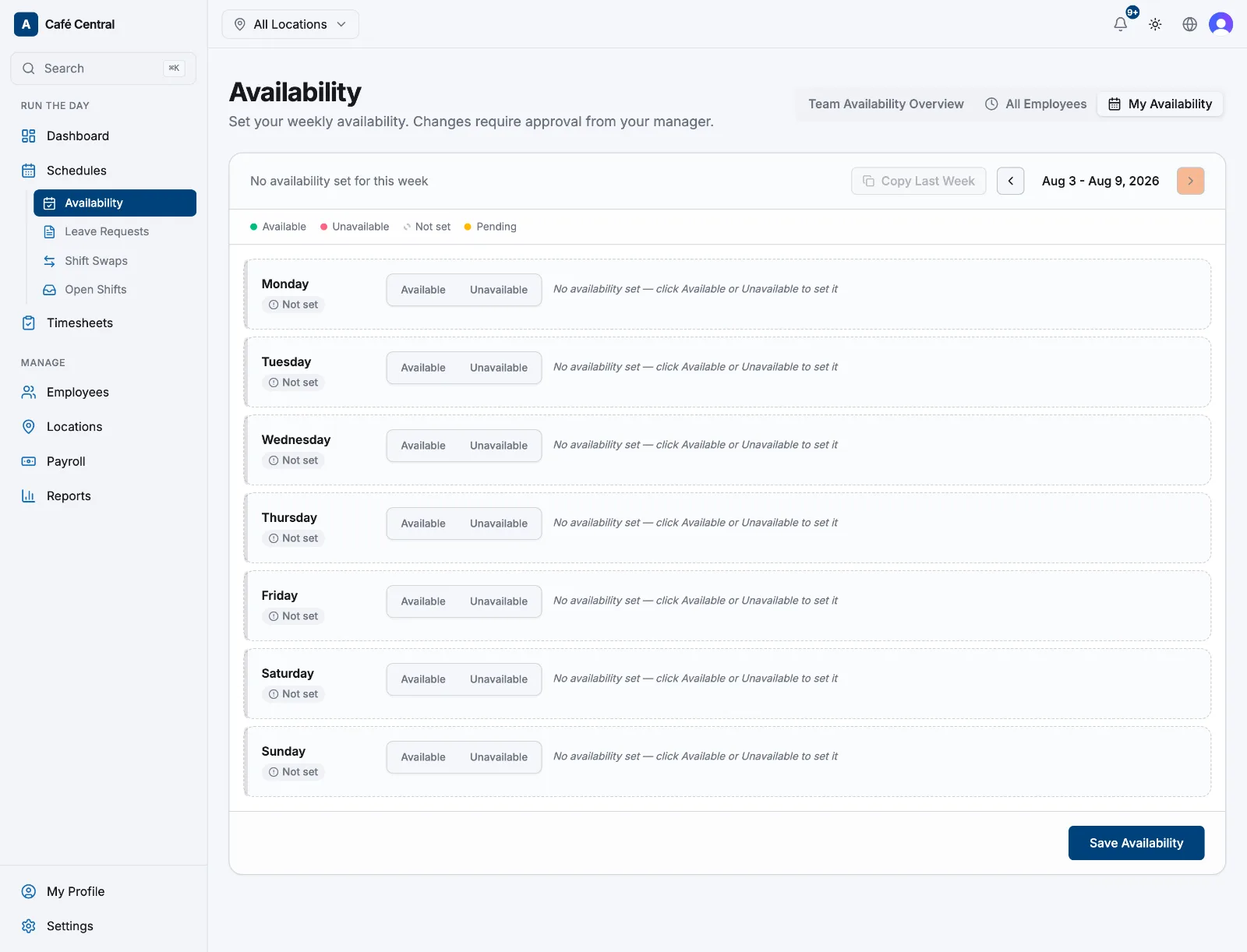
Reuse last week
Copy Last Week fills all seven rows from the availability you saved for the previous week. Nothing is stored until you select Save Availability, so adjust the days that changed first. The button is greyed out when last week has nothing saved.
When a change needs approval
- Setting a week for the first time saves immediately.
- Changing a week you already saved depends on how soon it starts. Your main location has a Days in advance for self-service changes setting (Locations → the location → Scheduling) — 7 days unless your admin changed it. Edit earlier than that and it saves directly; edit inside that window and it becomes a change request: Change request submitted. Awaiting manager approval.
- Your previous availability stays in force until a manager approves. While a request is pending the week is locked, though you can Cancel a single pending day.
- Past weeks are view-only.
The decision comes back as a banner on the Availability page, including any note your manager left.
What your manager does with it
Availability guides the schedule, it doesn't control it. Managers see the whole week in the team availability overview, and when they create a shift Atteny prefills your declared times and warns them if the shift falls outside your window — but scheduling is still possible. So always check your real shifts on the schedule.
Related articles
Still need help?
Contact support