
Exporting to CSV and PDF
Pick the rows and columns you need, then export or share the result.
Every report in Reports downloads as a CSV or a PDF through the same Download dialog. What you filter is what you get: the file is built from exactly the rows on screen.
- 1
Filter the report
Set the period and the location or employee you're interested in.
- 2
Choose the rows
Every employee is ticked by default (every location, on Location summary). Untick the ones you don't need, or use Select all. A counter beside the button keeps track — "4 of 7 selected".
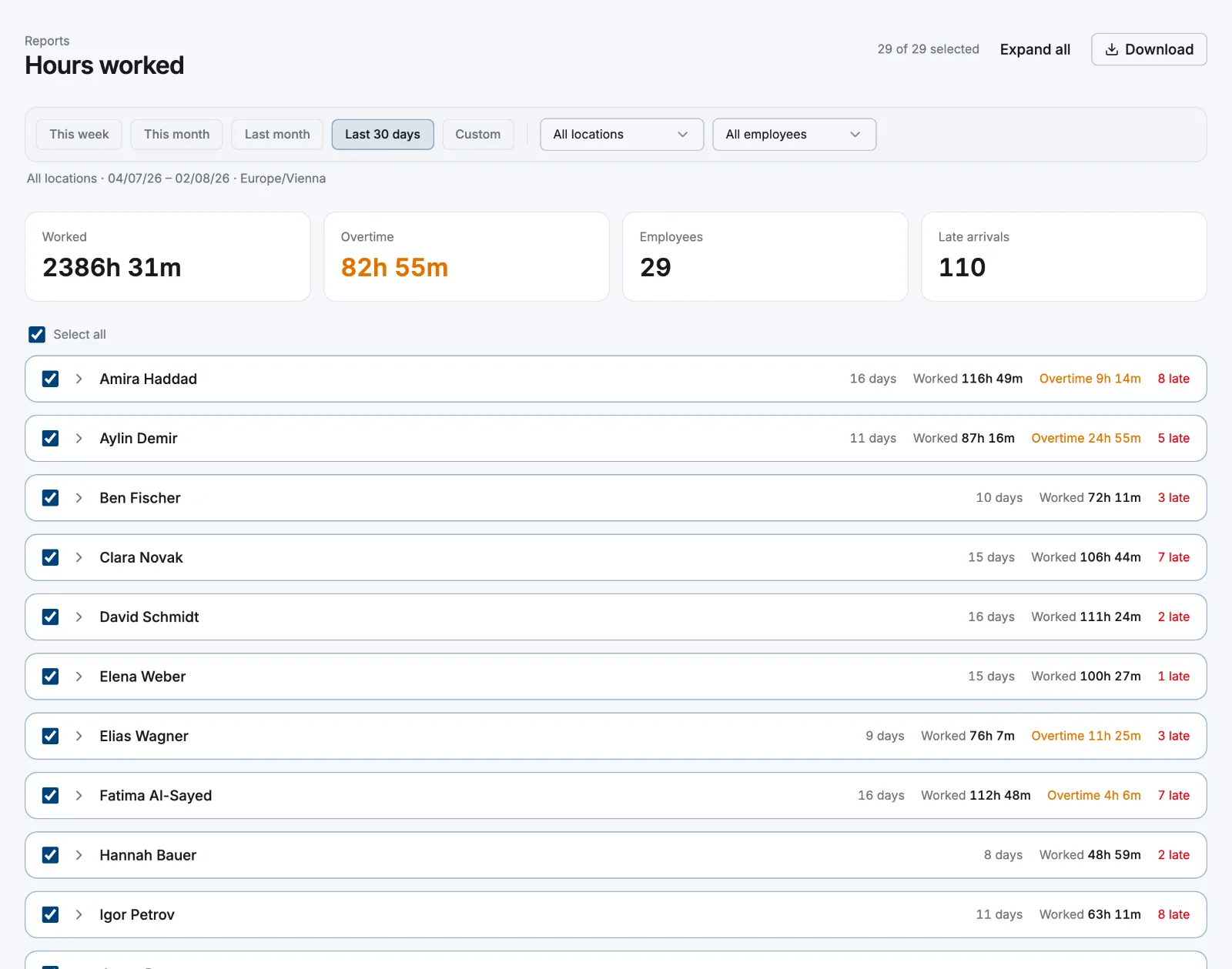
- 3
Select Download, then pick a format and columns
Choose CSV or PDF and tick the columns you want. Employee and Date are always included. The list offers every column that report has — more than the table shows — and some only appear in context (Location when you're viewing all locations, Late only when Atteny can tell whether someone was late).
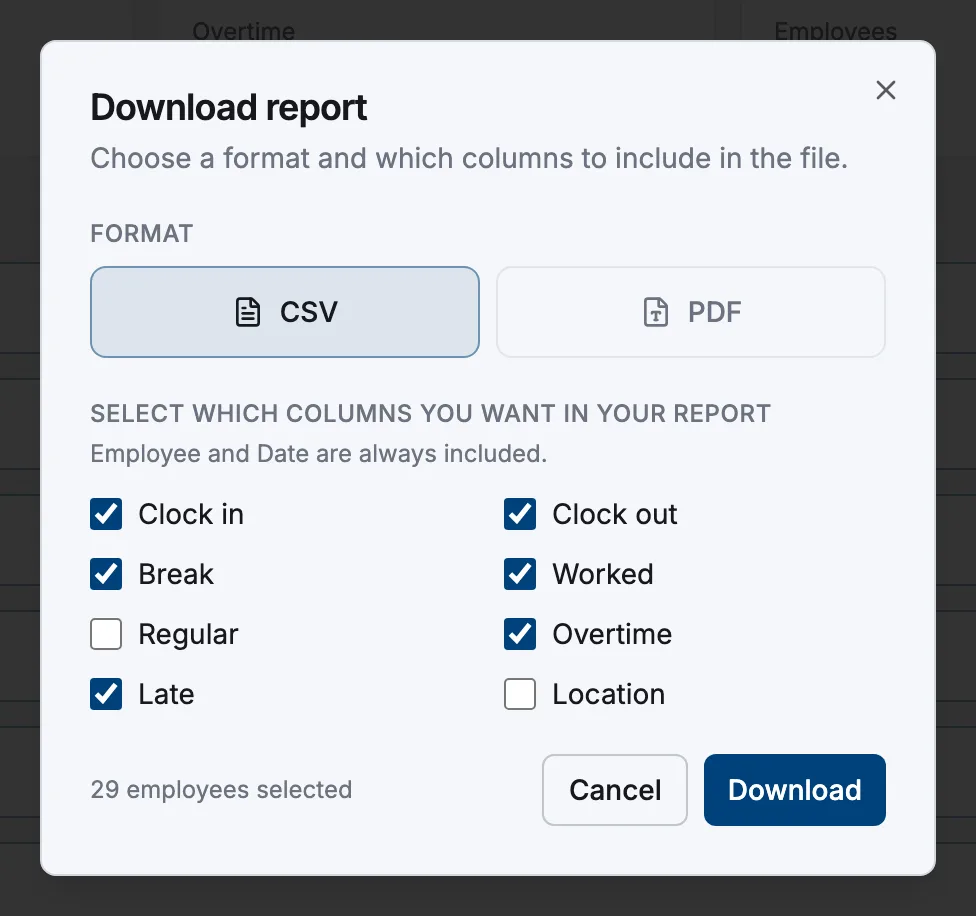
- 4
Select Download again
The file is built in your browser and saved straight away.
- 1
Open a report
Go to More → Reports and pick a report, then set the period and location.
- 2
Tap Download, then choose format and columns
Pick CSV or PDF and tick the columns.
- 3
Tap Share
The file is built on your device and handed to the system share sheet, so you can mail it, save it to Files or send it on.
Which format to pick
Both formats come from one set of rows, so a CSV and a PDF of the same view always match. Here's what a web export contains:
| CSV | ||
|---|---|---|
| Best for | reworking the numbers in a spreadsheet | sending or filing as-is |
| Contents | a context block (report, Company, Scope, Date range, Timezone, Generated at), then the table | your business name and logo, the same scope stamp, summary tiles, the table and page numbers |
| Notes | UTF-8 with a byte-order mark, so accents and € open cleanly in Excel | switches to landscape past five columns |
Both carry a bold Total row on every report except Attendance & exceptions. A mobile export is plainer: report name, company, scope and date range above the table, no logo and no page numbers.
Payslip PDFs are a separate download: on Payroll, open an employee's card and use Download PDF. That document carries a for-reference-only notice in its footer on every page.
Related articles
Still need help?
Contact support