
Reports
Where to find the numbers behind hours, attendance and cost — and how to read them.
Reports turns tracked time into four views you can read on screen and download. Each one is built on the same timesheet data as the Timesheets page, so the totals reconcile with what you actually approved.
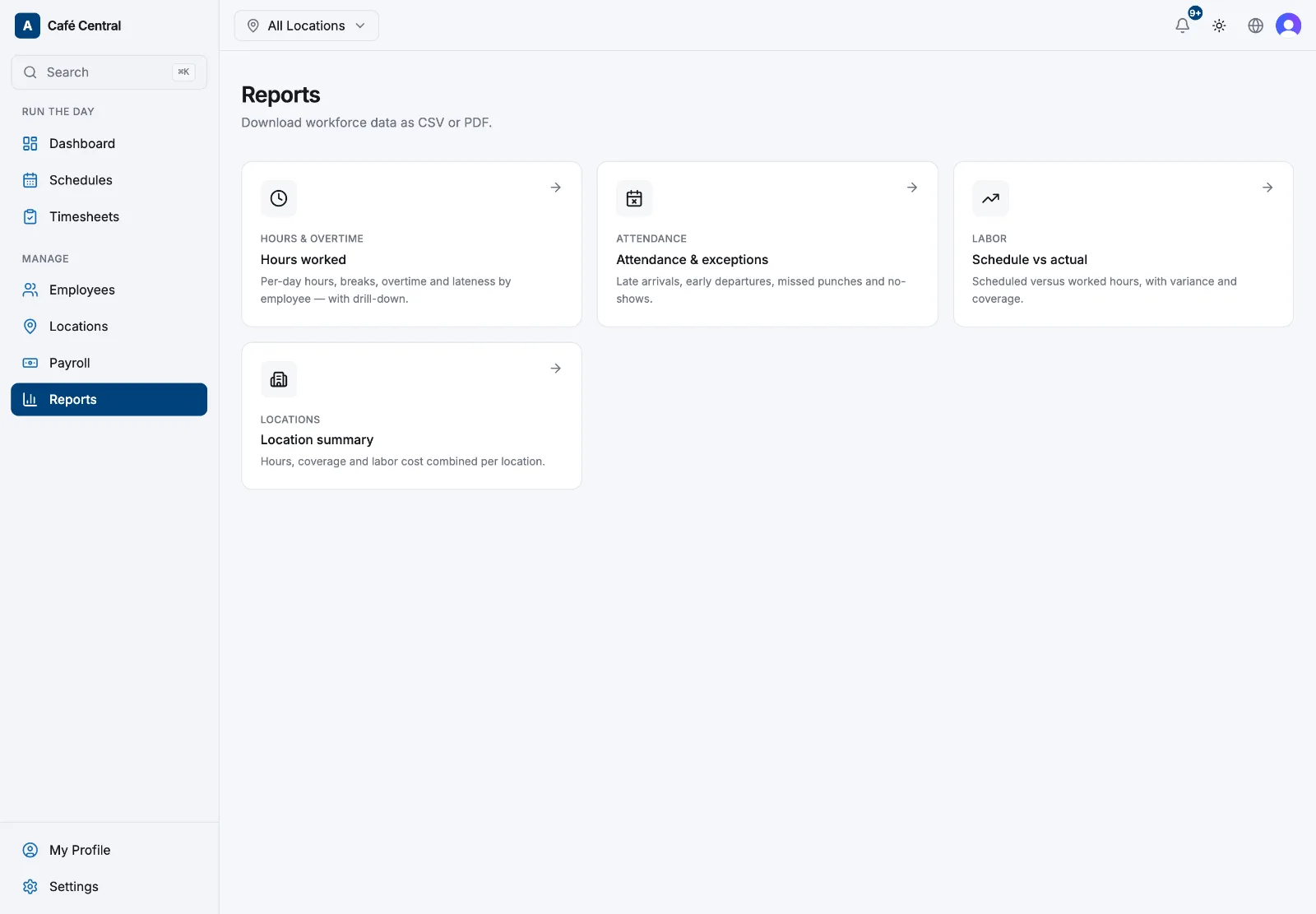
What each report answers
- Hours worked — who worked how long. Totals for Worked, Overtime, Employees and Late arrivals; per-shift columns for Clock in, Clock out, Break, Worked, Overtime and Late (Regular and Location are available in the download too).
- Attendance & exceptions — who was late, left early or didn't show up. Totals for Late arrivals, Minutes late, Early departures and Absences, with a per-day Status of On time, Late, Left early or No-show.
- Schedule vs actual — whether worked hours matched the plan: Scheduled, Worked, Variance and Coverage.
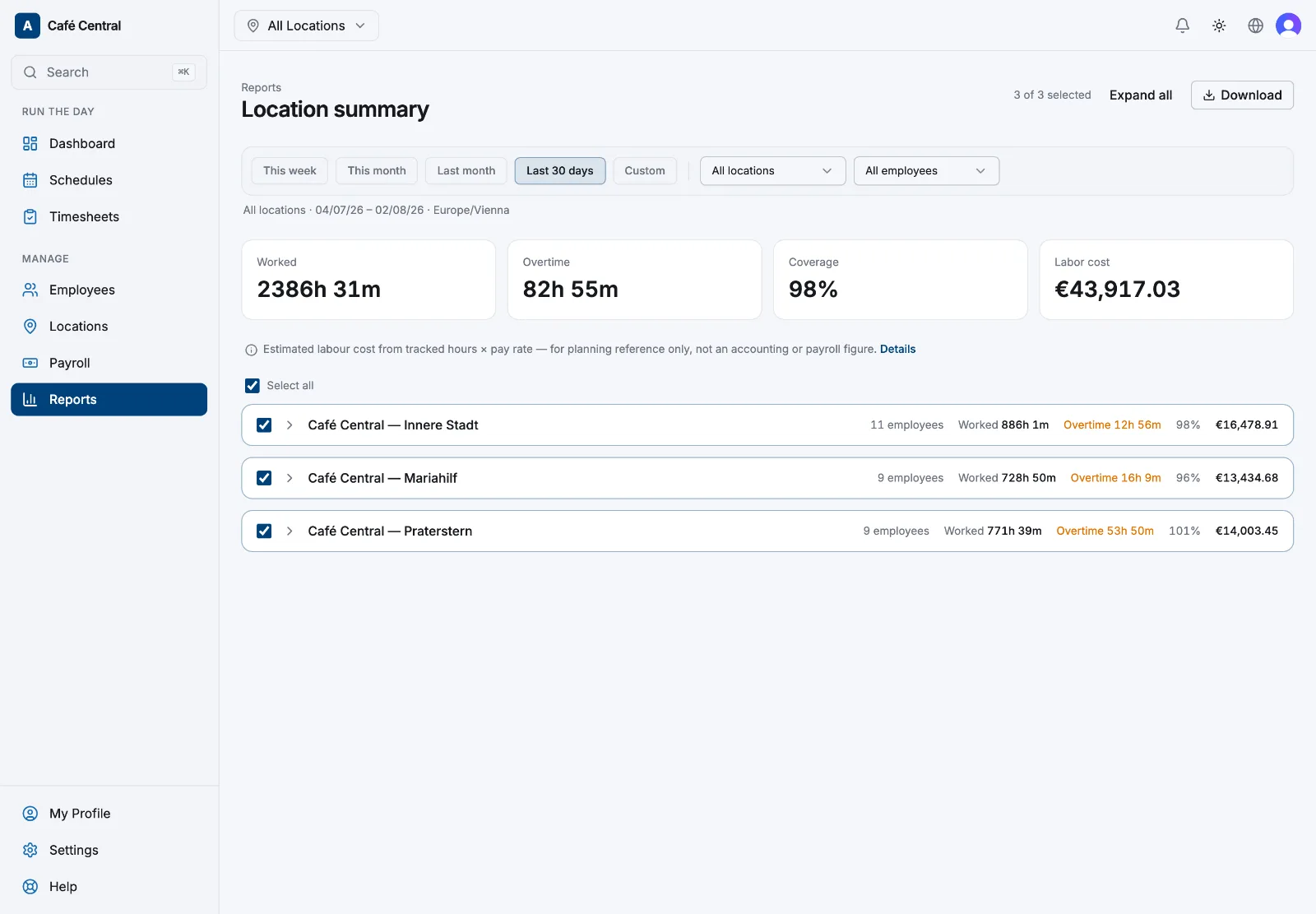
- Location summary — how your sites compare: Worked, Overtime, Coverage and Labor cost, per location.
Overtime here always means hours beyond the weekly contract in a Monday-start week — see Overtime and extra hours.
Filters and drill-down
All four share one filter bar: This week, This month (the default), Last month, Last 30 days, or Custom with a From/To range — plus Location and Employee. The line underneath repeats the scope, date range and timezone, so a downloaded file is never ambiguous about what it covers.
Rows are grouped by employee (by location in Location summary). Select a row, or Expand all, to open the day-by-day breakdown. The checkbox on each group also decides what goes into a download — see Exporting to CSV and PDF.
The one money figure
Only Location summary shows amounts: a Labor cost column and total, estimated from tracked hours and configured rates. Administrators always see it; managers only when Managers can see costs for all roles is on under Settings → Access & permissions. Read what estimated earnings means before you use the number for anything but planning.
If a report looks empty
- Attendance & exceptions needs something to measure against — either location operating hours or scheduled shifts. With operating hours, lateness allows the Lateness Grace Period set under Locations → the location → Scheduling.
- Schedule vs actual needs scheduled shifts inside the date range.
Related articles
Still need help?
Contact support