
Turning features on and off
Modules decide which parts of Atteny your team sees — here is what each one hides when you switch it off.
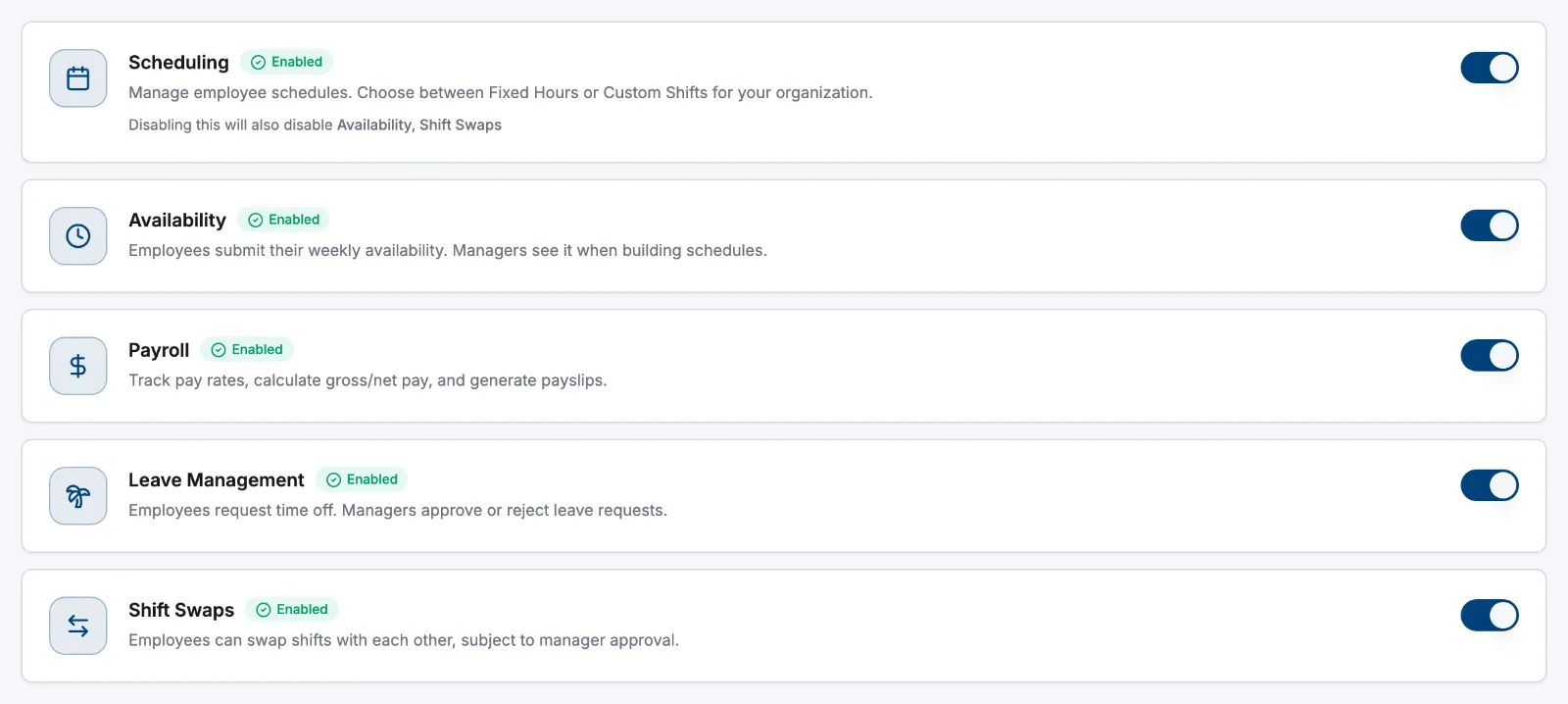
Modules are the master switches for Atteny's optional features. Switching one off hides it for everyone, on the web dashboard and in the phone app — and the server refuses the matching actions too, so a stale tab can't slip a change past a disabled module. Nothing is deleted: switch it back on and your data is where you left it. For the quick tour, see Choose your features; this page is the full reference.
The five modules
| Module | Requires | What goes away when it's off |
|---|---|---|
| Scheduling | — | Schedules leaves the sidebar and the app's tab bar (Notifications takes that slot). No week grid, auto-schedule or open shifts. Settings → Scheduling disappears. |
| Availability | Scheduling | Employees can't submit their weekly availability; the team availability overview goes on both web and app. Availability leaves the Schedules menu. |
| Payroll | — | Payroll leaves the sidebar, along with Settings → Pay rates and Settings → Payroll. Labour-cost figures on the dashboard and My payroll in the app are hidden. |
| Leave Management | — | Leave requests, approvals and balances disappear on web and app; Settings → Leave policies goes with them. |
| Shift Swaps | Scheduling | The Shift Swaps page and app screen disappear; employees can't ask a coworker to cover. |
Time tracking is core: clocking in and out, timesheets, approvals, employees, locations and the audit log are always there and have no switch. Reports isn't a module either — it's part of your plan, not this page.
Dependencies
Availability and Shift Swaps both build on Scheduling. Turn Scheduling off and Atteny asks you to confirm, then switches all three off together.
Time off in lieu keeps working without Leave
TOIL follows your overtime setting, not the Leave module: it appears whenever Pay overtime in money is off under Settings → Time & attendance. Banked hours stay visible and requestable with Leave Management switched off — see Time off in lieu.
Presets
| Preset | Scheduling | Availability | Payroll | Leave | Shift Swaps |
|---|---|---|---|---|---|
| Restaurant / Hospitality | On | On | On | On | On |
| Office | On | Off | On | On | Off |
| Retail | On | Off | On | On | Off |
Office and Retail set the same five switches — start from either and fine-tune. A preset applies the moment you select Apply; individual toggles need Save Changes.
Switching a module on can block clock-in
Some modules need details on every profile: Payroll requires an employment type and pay group, Scheduling requires a work location. Atteny counts who's missing something at the top of the Modules page, and those people can't clock in until an admin fills the gaps. The invite form asks for the same fields only while the module is on.
In the phone app
The app picks up your change within seconds — no reinstall, no sign-out. Admins can't toggle individual modules there; the app only offers the business-type preset in the first-run setup guide, which you can reopen from its Settings screen.
Related articles
Still need help?
Contact support