
Choose your features
Turn Atteny's modules on or off so the app shows only the features your business actually uses.
Atteny is built from features you can switch on and off, called modules. Turn off the ones you don't need and those parts of the app disappear for everyone, so your team only ever sees what matters to your business. You can change this at any time.
- 1
Open the Modules page
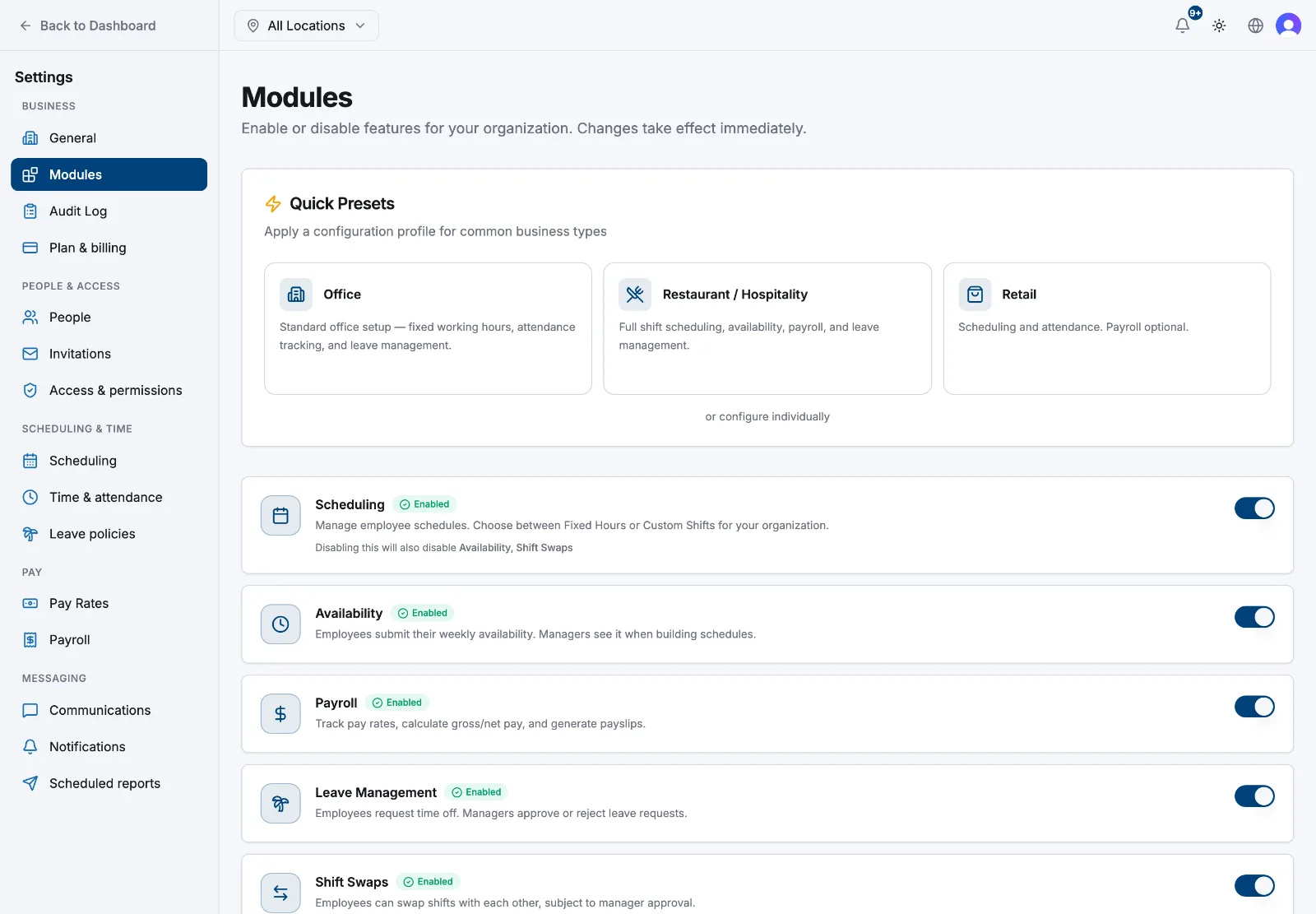
Go to Settings → Modules. The page opens with quick presets at the top and a list of every module below, each showing an Enabled or Disabled badge.
- 2
Start from a preset (optional)
Under Quick Presets, pick the business type closest to yours and select Apply:
- Restaurant / Hospitality: turns everything on (scheduling, availability, payroll, and leave).
- Office: fixed working hours, attendance, and leave, with availability and shift swaps off.
- Retail: scheduling and attendance with leave, availability and shift swaps off.
A preset is just a starting point. You can fine-tune any individual module afterwards.
- 3
Turn individual modules on or off
Use the switch on each row to toggle a module. There are five:
- Scheduling: build employee schedules (Fixed Hours or Custom Shifts).
- Availability: employees submit their weekly availability; managers see it when building schedules.
- Payroll: track pay rates and calculate gross/net pay and payslips.
- Leave Management: employees request time off; managers approve or reject it.
- Shift Swaps: employees swap shifts with each other, subject to manager approval.
- 4
Watch the dependencies
Some modules build on others. Availability and Shift Swaps both require Scheduling, so turning Scheduling off automatically turns those two off as well. When that happens, Atteny asks you to confirm before hiding the related features.
- 5
Save your changes
Toggling a module reveals a Save Changes button. Select it to apply your choices. Presets apply the moment you select Apply, no separate save needed.
What disappears when a feature is off
- Scheduling off: no schedule grid, shifts, auto-schedule, or open shifts anywhere. Availability and shift swaps go with it.
- Availability off: employees can no longer submit their weekly availability, and it won't show while building schedules.
- Payroll off: pay rates, gross/net figures, payslips, and wage-cost views are hidden.
- Leave Management off: no leave requests, approvals, policies, or balances.
- Shift Swaps off: employees can't ask a coworker to take a shift.
Time tracking, timesheets, and clock-in stay on no matter what. They're core to Atteny and can't be switched off.
What's next
Presets are also offered during first-run setup: the business-type picker on both web and the mobile app applies these same profiles. Once your features are set, fill in your company basics, then run the guided setup wizard to add your first location, roles, and team.
Related articles
Still need help?
Contact support