
Not getting notifications?
Turn on push, send yourself a test, and work out whether it is the phone, the app or the settings.
Atteny reaches you on three separate channels, and "nothing arrives" usually means only one of them is broken. Start with the test button — it tells you in about five seconds whether the problem is your phone or your company's settings.
Send yourself a test
- 1
Tap Send a test notification
The button does three things in order: it checks whether you've allowed notifications, it re-registers this phone with Atteny, and it fires a real push through exactly the same path every other notification uses.
- 2
Read what comes back
What you see What it means Test sent — then a banner saying "Your notifications are working." Push is fine. If the alert appears but no banner does, notifications are muted at the phone level. Notifications are turned off for Atteny Open your device Settings → Atteny → Notifications, allow them, and try again. Not registered This phone has no push registration yet. Allow notifications on the device, then tap the button again — it registers the phone for you. Push notifications only work on a physical device You're on a simulator, not a real phone. - 3
Check Focus and Do Not Disturb
A few time-sensitive alerts — late arrival or no-show, forgot to clock out, and a shift swap that needs approval — are sent at high priority and can break through Focus. Everything else is a normal notification and stays silent while Focus is on.
You can send five tests a minute; after that, wait a minute and try again.
The three channels do different jobs
| Channel | Where it lands | Worth knowing |
|---|---|---|
| In-app | The bell in the web top bar, or More → Notifications in the app | An unread badge, not a pop-up — you open the list to read it |
| Push | A banner and sound on your phone, even when the app is closed | Needs the app installed with notifications allowed; does nothing for web-only users |
| Your inbox | Only on the few types that have an email template — leave approved, leave rejected, shift swap requested |
So a manager who only ever uses the web dashboard will see in-app items and emails, but never a push.
When your phone is fine but nothing arrives
Your administrator controls delivery centrally under Settings → Notifications, per notification type, per role, per channel. If Push is switched off for Employees on, say, New shift assigned, no phone setting of yours will bring it back — ask an admin to check that row.
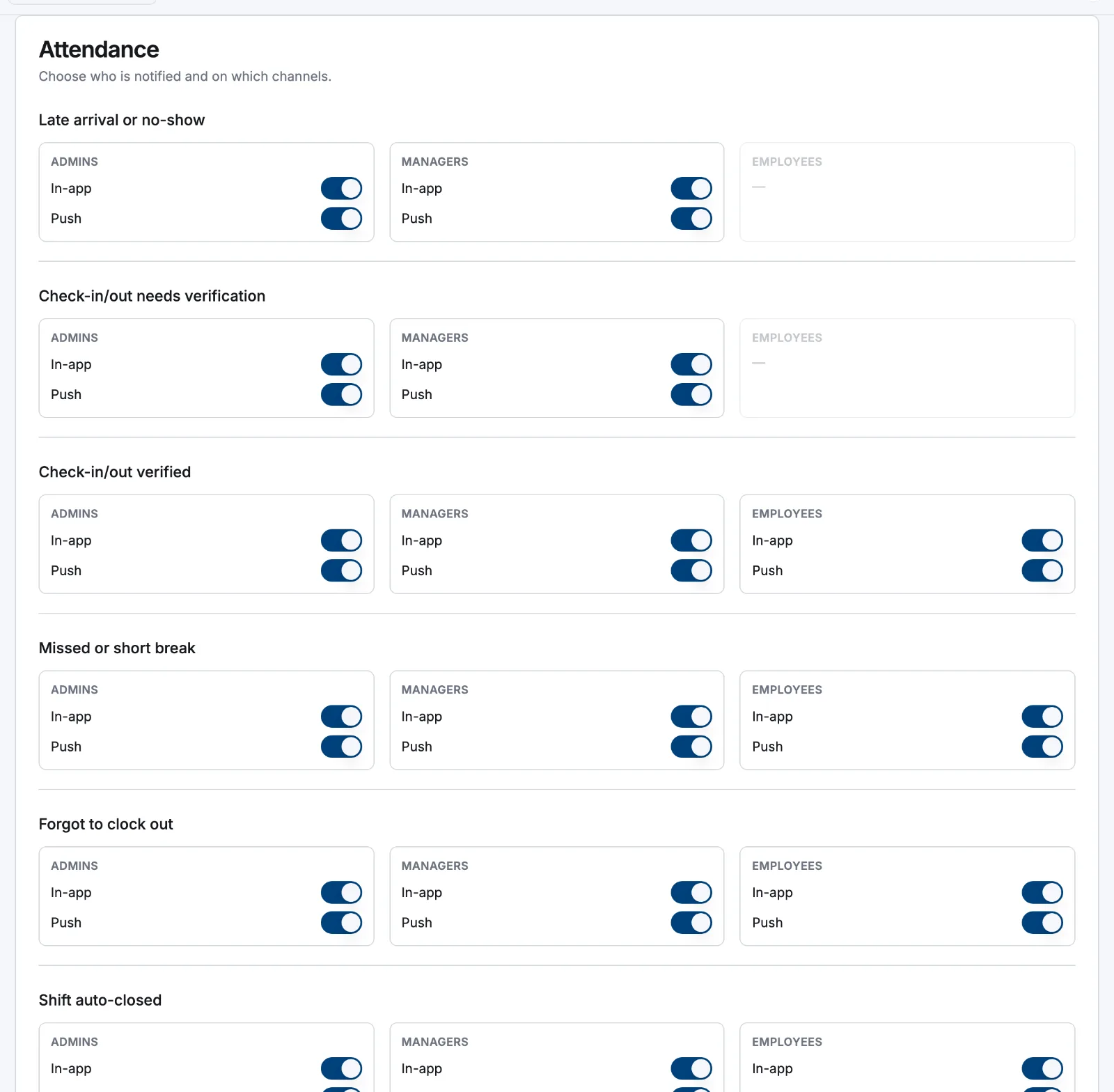
A stale device registration
Atteny drops a phone's registration automatically when the app is uninstalled or notifications are denied, so a device that was working can go quiet after a reinstall, a new phone, or a factory reset. Tapping Send a test notification is the reliable fix — it re-registers the phone on the spot, then sends the test. Run it once on any handset that has stopped receiving alerts.
Related articles
Still need help?
Contact support