
Notification settings
Choose which events notify which roles, and on which channels.
Atteny tells people when something needs their attention — a late arrival, an approved leave request, a shift that changed. Settings → Notifications is where you decide, event by event, which roles hear about it and how.
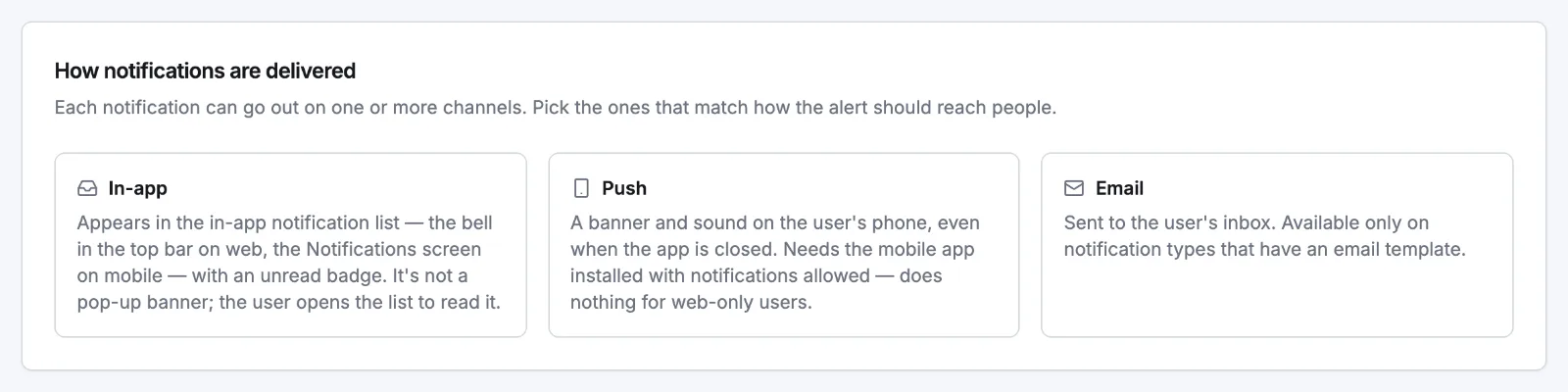
The three channels
| Channel | What it does |
|---|---|
| In-app | Appears in the notification list — the bell in the top bar on web, the Notifications screen on mobile — with an unread badge. It's a list, not a pop-up banner. |
| Push | A banner and sound on the phone, even when the app is closed. Needs the mobile app installed with notifications allowed, so it does nothing for web-only users. |
| Sent to the person's inbox. Only offered on the three events that have an email template: Shift swap requested, Leave approved and Leave rejected. |
Who can be notified about what
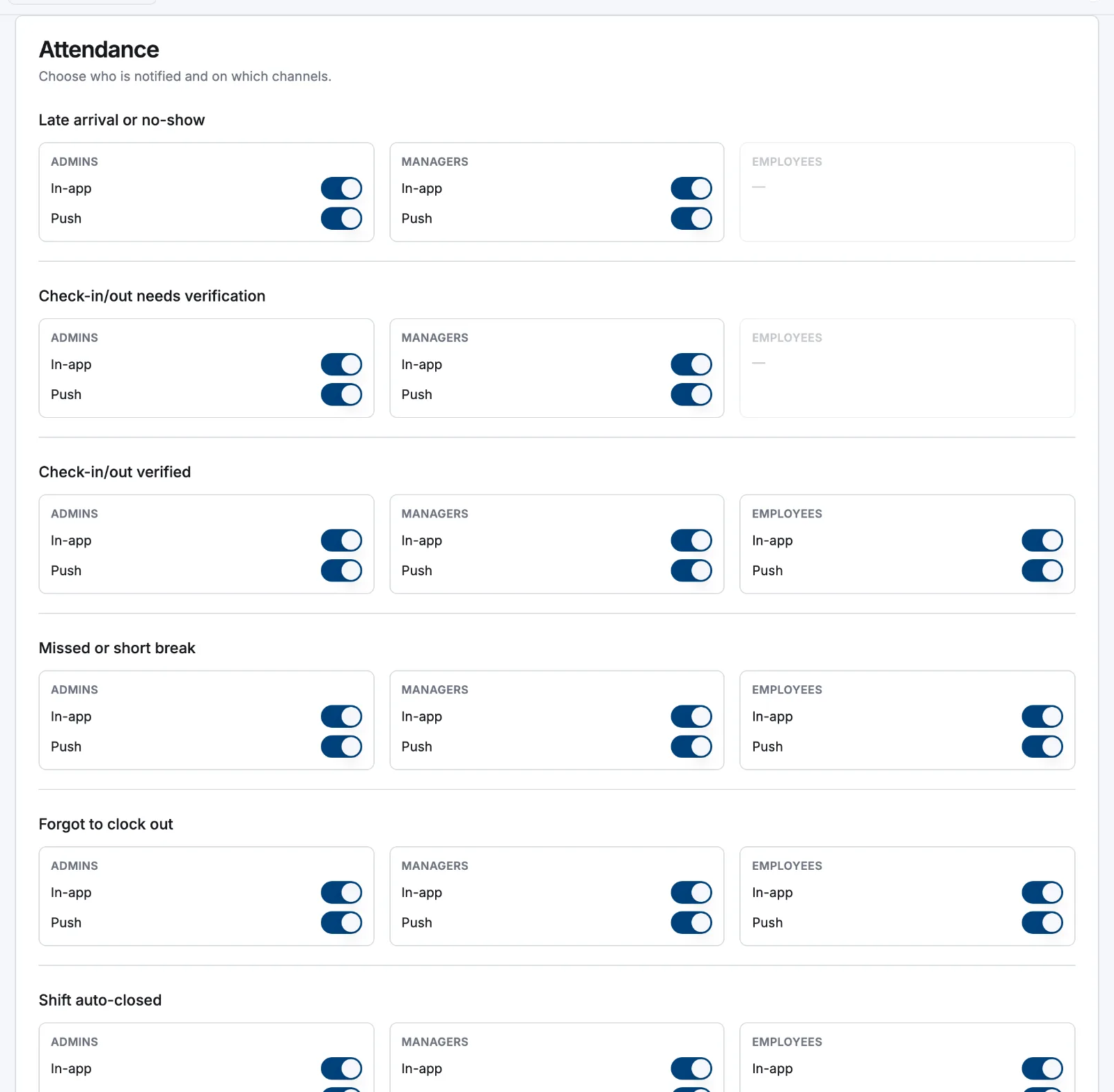
Each event lists only the roles that can genuinely receive it; the rest show a dash and can't be switched on.
| Group | Event | Admins | Managers | Employees |
|---|---|---|---|---|
| Attendance | Late arrival or no-show | Yes | Yes | — |
| Attendance | Check-in/out needs verification | Yes | Yes | — |
| Attendance | Check-in/out verified | Yes | Yes | Yes |
| Attendance | Missed or short break | Yes | Yes | Yes |
| Attendance | Forgot to clock out | Yes | Yes | Yes |
| Attendance | Shift auto-closed | Yes | Yes | Yes |
| Attendance | Timesheet approved / rejected | Yes | Yes | Yes |
| Attendance | Clocked in/out by a manager | — | — | Yes |
| Scheduling | New shift assigned / updated / cancelled | Yes | Yes | Yes |
| Scheduling | Open shift claimed | Yes | Yes | — |
| Scheduling | Open shift available | — | — | Yes |
| Availability | Availability reminder | — | — | Yes |
| Availability | Availability not submitted (summary) | Yes | Yes | — |
| Shift swaps | Shift swap requested / accepted / declined | Yes | Yes | Yes |
| Shift swaps | Shift swap needs approval | Yes | Yes | — |
| Leave | Leave approved / rejected | Yes | Yes | Yes |
| Leave | TOIL approved / rejected | — | — | Yes |
| Account | Account deletion requested | Yes | Yes | — |
Managers only ever hear about their assigned locations — the late-arrival alert goes to the managers of the shift's location, and the availability summary lists only their own people. Admins get the company-wide version. See Manager location scoping.
Change the policy
- 1
Open the page
Go to Settings → Notifications. The delivery card sits at the top, then one card per group: Attendance, Scheduling, Availability, Shift swaps, Leave, Account.
- 2
Set each event
Every event shows three boxes — Admins, Managers, Employees — with a switch per available channel. Turn all switches off for a role and that role stops hearing about the event entirely.
- 3
Save
Select Save at the top right. The change takes effect on the next event — it doesn't resend anything already delivered.
Related articles
Still need help?
Contact support