
Pay rates and rate history
Set an hourly rate, change it later, and choose whether past approved hours keep their old cost.
A rate isn't stored on a person directly — it lives on a pay rate under Settings → Pay → Pay Rates, attached to an employment type. Each person picks up the rate whose employment type matches theirs, and every rate carries an effective from date, so each shift is priced with the rate that was in effect on the day it was worked.
Where a person's rate comes from
Atteny takes the first of these it finds, using the shift's clock-in time:
- The pay rate whose employment type matches the person's, and whose effective window covers that moment.
- The Pay rate value on their Employment tab — a fallback used only when no pay rate matches their employment type.
So if someone's employment type already has a rate, changing their Pay rate field alone won't change what their hours cost. Set the rate on the contract, or give them an employment type that has one.
Rate history
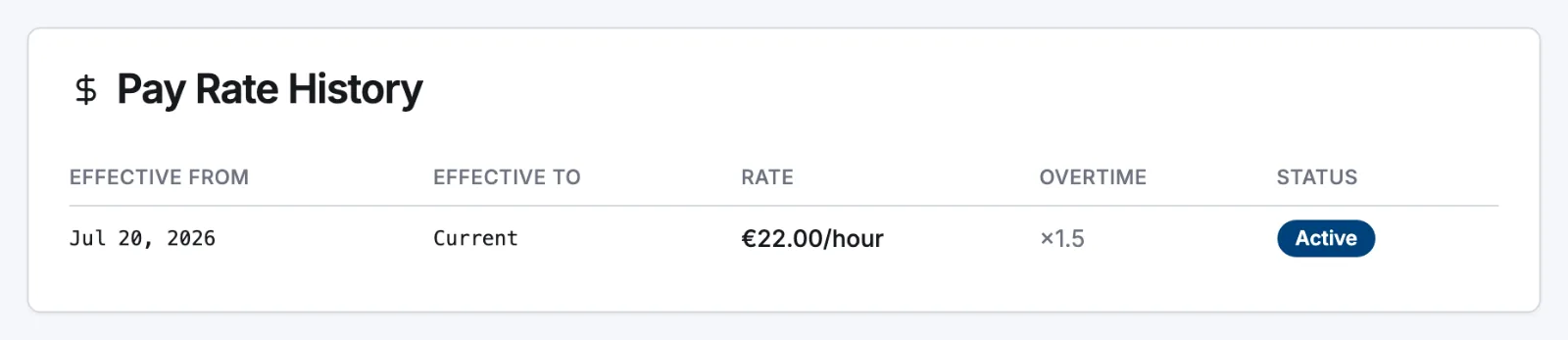
Open Employees → the person → Employment and scroll to Pay Rate History. Every rate their employment type has ever had is listed with Effective from, Effective to, Rate, Overtime multiplier and Status — the open row shows Current. This is how you answer "what rate was this person on in March?" without digging through audit logs.
What happens to already-approved timesheets
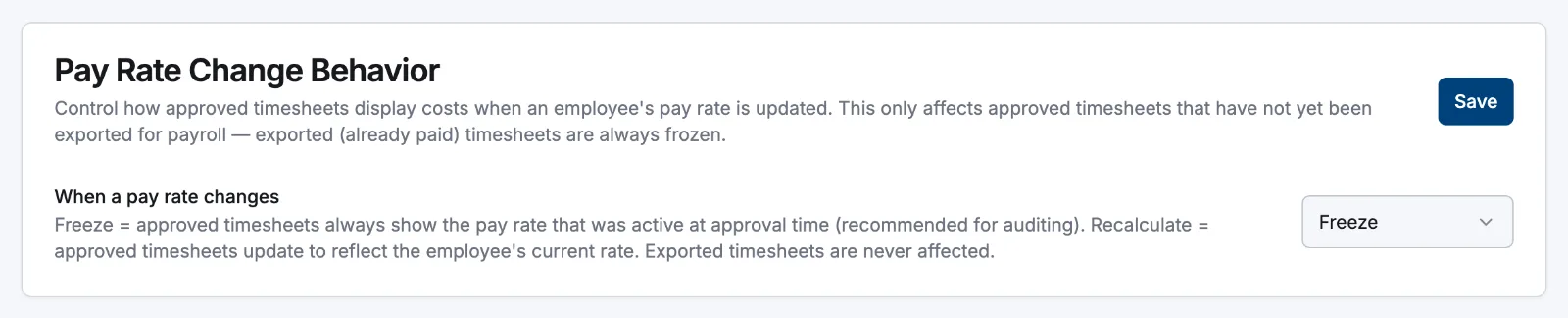
When a timesheet is approved, Atteny stores the rate it was priced at. What happens to that stored figure if the rate later changes is up to you: Settings → Pay → Pay Rate Change Behavior → When a pay rate changes.
| Mode | Effect on approved timesheets |
|---|---|
| Freeze (default) | They keep the rate that was active when they were approved — the audit-friendly choice. |
| Recalculate | They follow the employee's current rate instead. |
The Preserve manager overrides switch appears once you pick Recalculate and is on by default. While it's on, an approved timesheet whose stored rate differs from the newly effective one keeps its stored rate — turn it off if you want the recalculation to reach those timesheets too. Remember to select Save.
This setting changes what Timesheets and Reports display. It doesn't change how you set the boundary for a raise — that's the Effective from choice covered in Set roles and pay rates.
Related articles
Still need help?
Contact support