
Set roles and pay rates
Create employment types and hourly pay rates, then assign a rate to each person so tracked hours turn into pay estimates.
Pay rates are what turn the hours your team clocks into money. You set two things up once, employment types (which cap how many hours someone can be scheduled) and pay rates (the hourly amount), then assign a rate to each person. After that, timesheets and reports can show estimated pay.
- 1
Open Settings, then Pay Rates
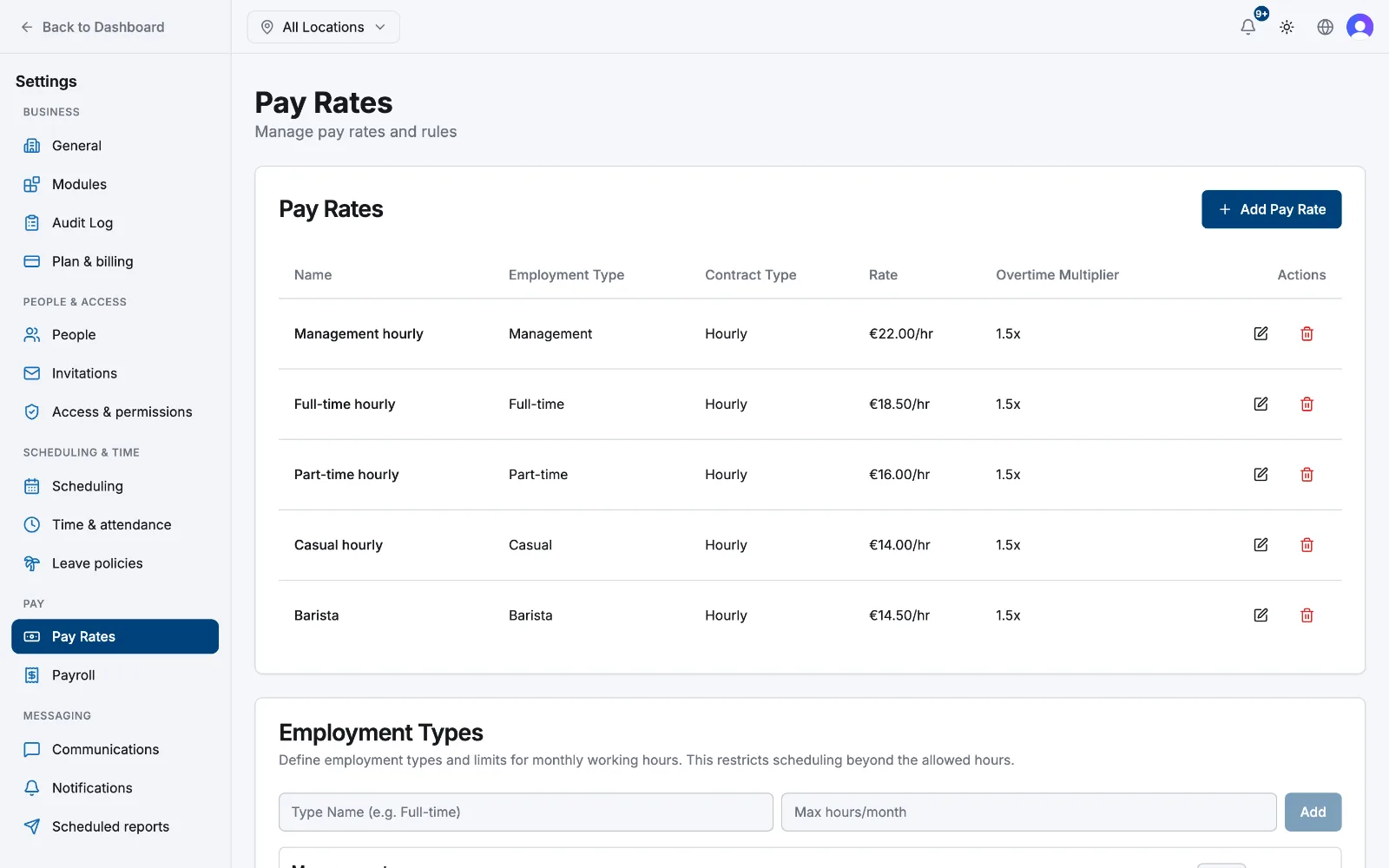
In the sidebar open Settings. Under the Pay group, select Pay Rates. Both your employment types and your pay rates live on this one page.
- 2
Add your employment types
Scroll to Employment Types. Type a name (for example Full-time or Part-time) and a Max hours/month value, then select Add. These types group your team and stop the schedule from booking someone past their monthly hour limit.
- 3
Create a pay rate
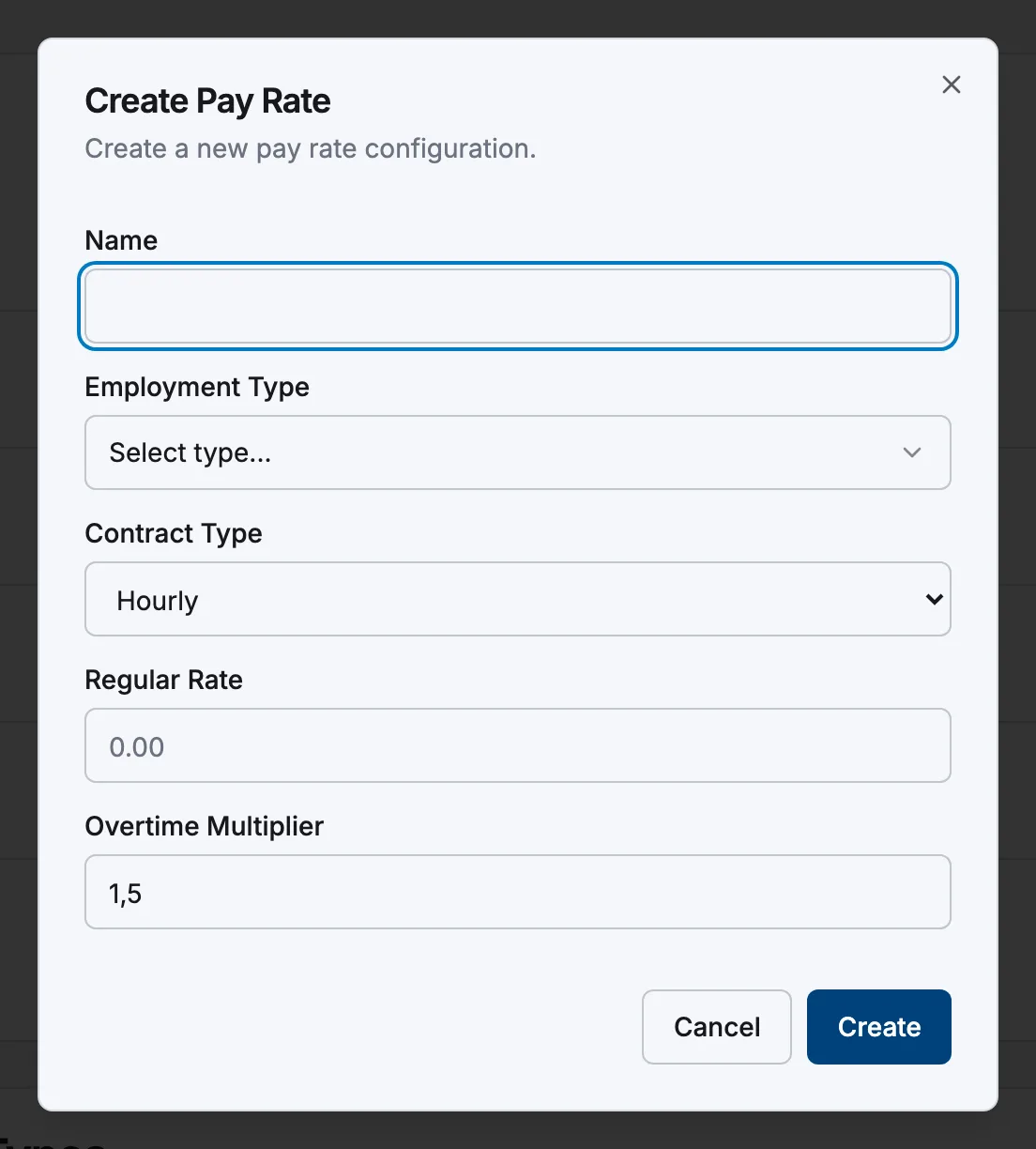
In the Pay Rates card select Add Pay Rate. Give it a Name, choose the Employment Type it applies to, and leave Contract Type on Hourly. Enter the Regular Rate (the amount you pay per hour) and an Overtime Multiplier if overtime is paid at a higher rate (1.5 by default). Select Create.
- 4
Assign the rate to each person
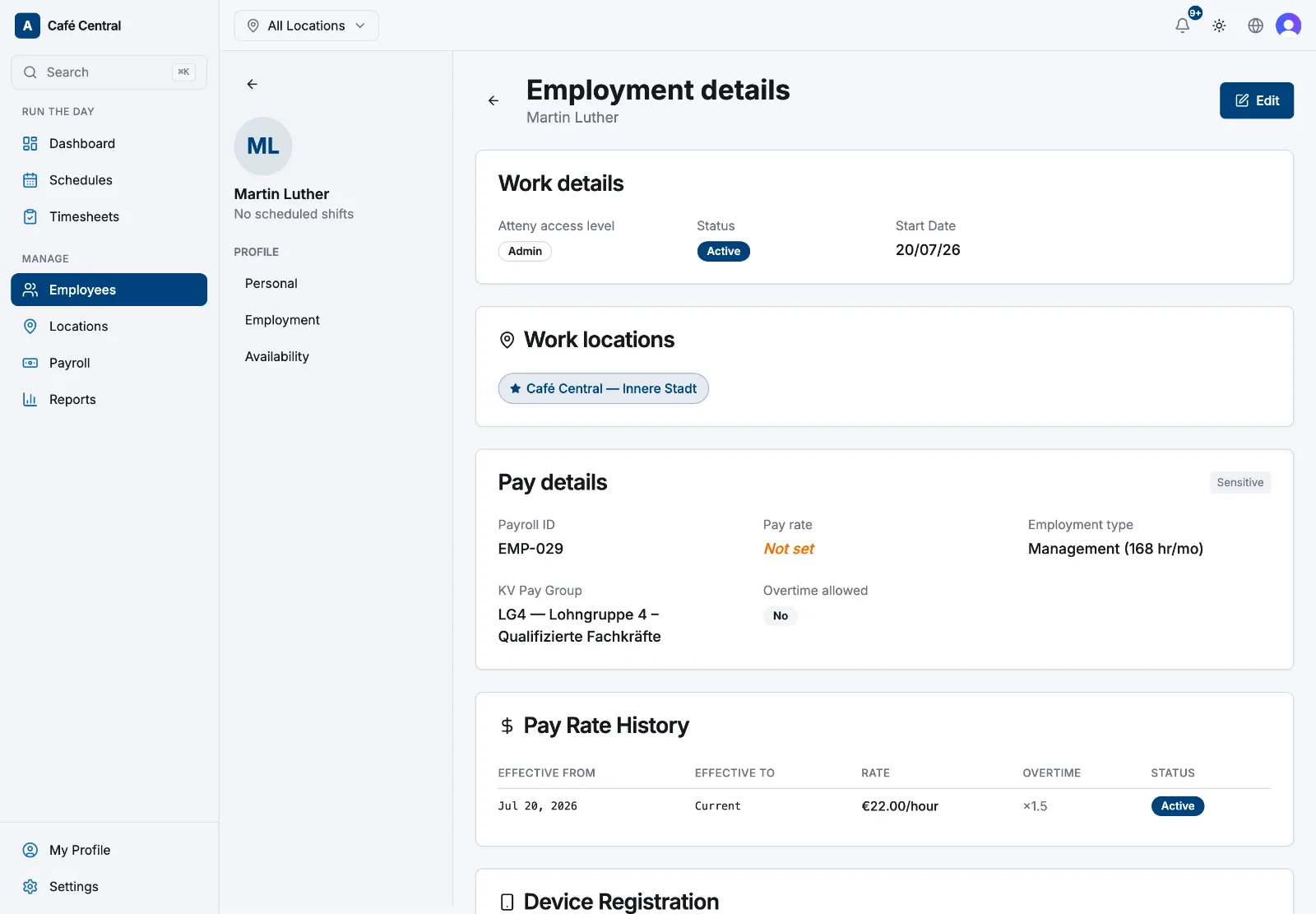
Go to Employees, open a team member, and switch to the Employment tab. Under Pay details, pick their Pay rate and Employment type. A rate does nothing on its own. This is the step that links a person to their pay.
Changing a rate later
When pay changes (say everyone on Full-time gets a raise), reopen the rate from the Pay Rates card, update the Regular Rate, and choose Effective from before saving:
- Start of next month: this month finishes on the old rate, the new rate begins next month (the usual choice).
- Start of current month (rewrites this month): recalculates this month's totals at the new rate.
- From now (only future shifts): applies to shifts from this point on.
Past months are never changed. You can review every change to a person's pay over time in Pay rates and history.
What's next
With rates in place, the pay estimate follows each person automatically as they clock in and out. If you haven't added your team yet, see Invite your team. You can set someone's employment type, hourly rate and location right from the invite.
Related articles
Still need help?
Contact support