
How do I see my schedule?
Your shifts, your team's shifts and any open shifts you can grab, all in the Schedule tab.
The Schedule tab is where you'll find every shift you're rostered for, plus any open shifts you can pick up.
- 1
Open the Schedule tab
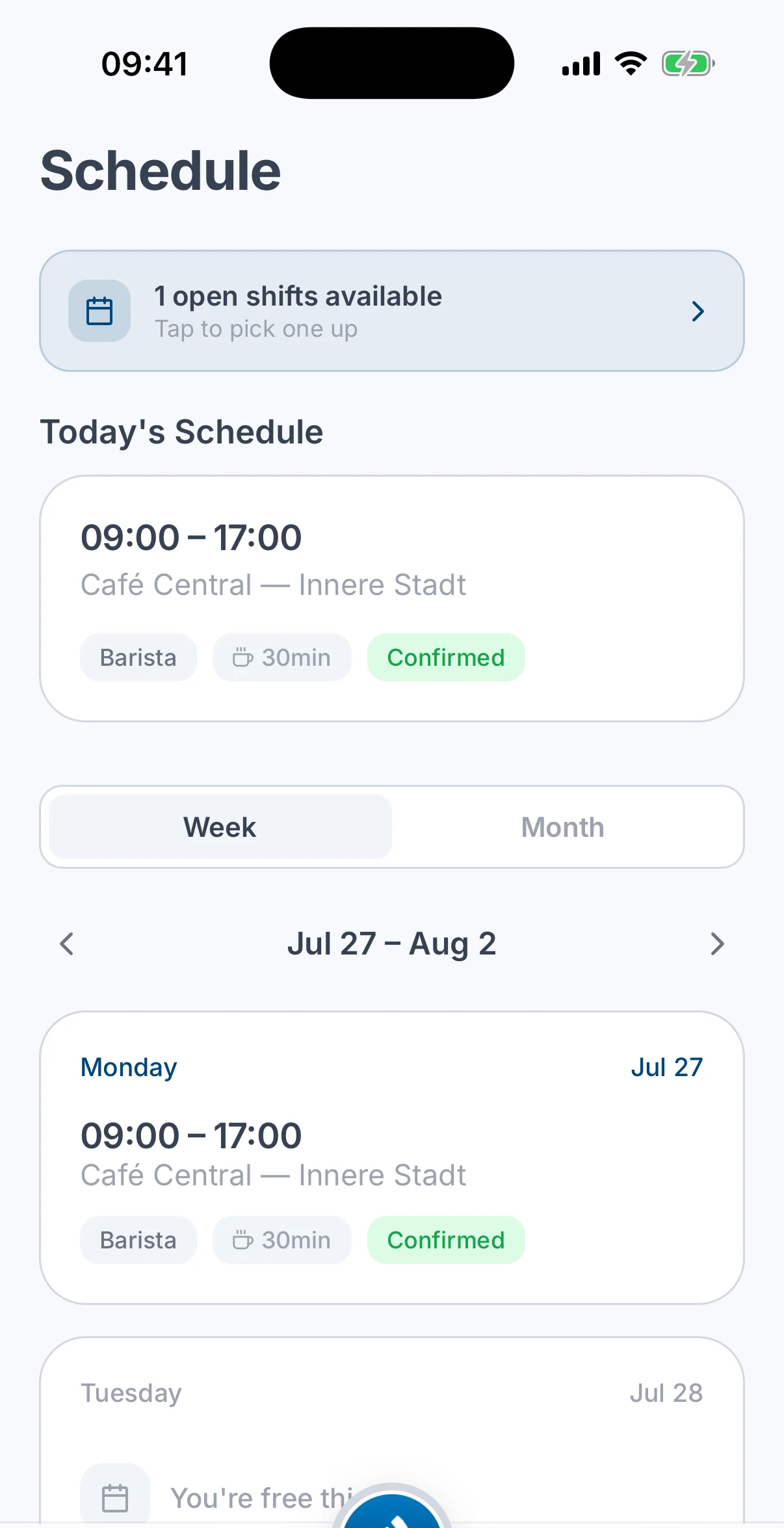
Tap Schedule in the bottom tab bar. It opens straight onto your own shifts.
- 2
Switch between Week and Month
Use the Week / Month toggle to change the view. Week lists each day's shifts; Month shows a calendar with a dot on every day you're working. Tap a day to see that day's shifts.
- 3
Pick up an open shift
When shifts are going spare, a banner appears at the top: " open shifts available. Tap to pick one up". Tap it to see what's available and claim one.
You can also view your schedule on the web app at app.atteny.com.
Related articles
Still need help?
Contact support