
Open shifts
A shift with nobody assigned yet, and how the team picks it up.
An open shift is a shift with nobody assigned to it. Atteny creates them when Auto Schedule can't find anyone for a slot at a location where you've allowed it. Instead of quietly dropping that coverage, the shift goes up for grabs and anyone who works at that location can pick it up.
- 1
Allow open shifts for the location
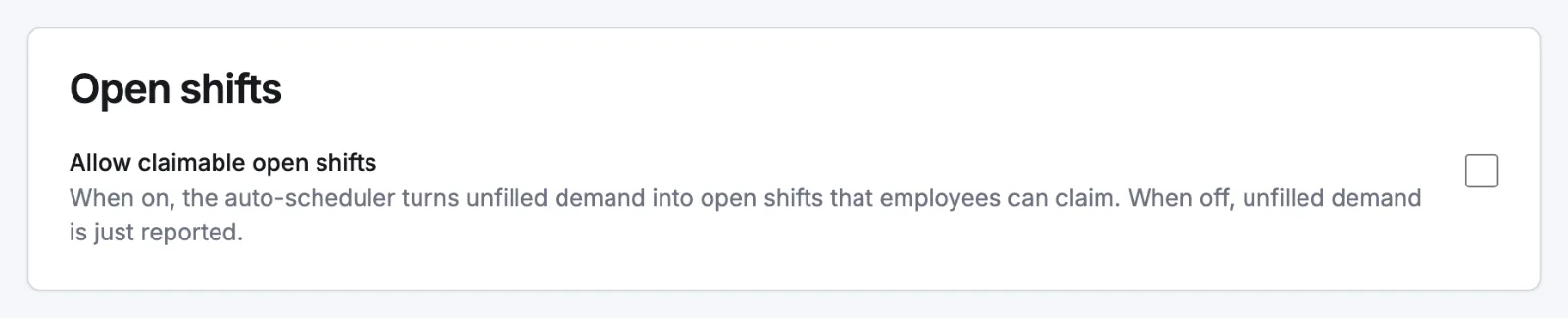
Go to Locations, select the location, then Scheduling. In the Open shifts card, tick Allow claimable open shifts and select Save. It's off by default: with it off, demand nobody can cover is only reported.
- 2
Generate the week
On Schedules, select Auto Schedule, then Accept & Apply. Slots with no available staff turn into open shifts at the locations that allow it. The result panel says how many were "created for pickup". At other locations they stay in the Unfilled tile.
- 3
Watch them in the week grid
An Open shifts row appears under the week grid for administrators and managers, one dashed block per unclaimed shift. Select a block to open the shift dialog, where you can pick an employee (which closes the open shift), change the times, or delete it.
How the team picks one up
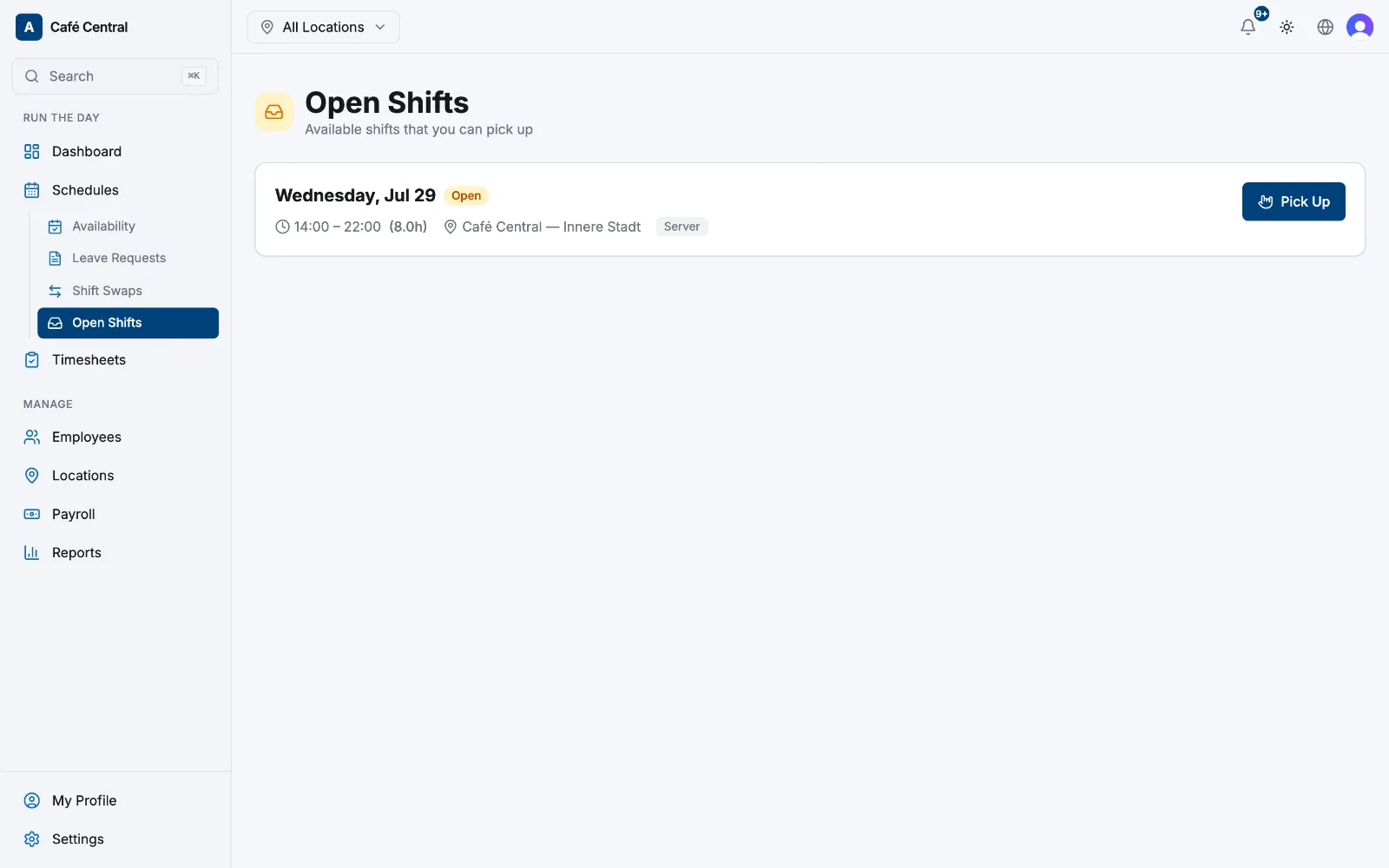
There's no approval step: claiming assigns the shift straight away and marks it confirmed. Employees at the location get an Open shift available notification when new ones appear, and whoever created the shift gets Open shift claimed.
Good to know
- Only future shifts at locations you're assigned to are claimable.
- First come, first served: if someone beat you to it, the claim fails.
- A claim that overlaps a shift you already have is blocked: "You already have an overlapping shift at this time."
- Availability isn't checked, so someone can claim a shift on a day they marked as unavailable. Once claimed the shift is theirs. An administrator or manager has to reassign it from the shift dialog if that's wrong.
Related articles
Still need help?
Contact support