
Publishing the schedule
Shift statuses, what publishing does, and exactly what your team gets told.
Atteny has no draft week. A shift is live the moment you save it, and the person it belongs to is told straight away, so "publishing" is really just saving. What matters is what your team hears, and what each status does.
- 1
Save a shift: the person is notified
Whether you use Add Schedule, drag someone in from the Employee Pool, or accept an Auto Schedule proposal, the assignee gets a New shift assigned notification with the date, the location and the times.
- 2
Build in bulk without spamming anyone
Copy prev week and Auto Schedule send one grouped message per person ("You have 5 new shifts at Café Central") instead of one per day.
- 3
Change or remove a shift
Changing the time, date, person, location or status sends Shift updated with the new time. Deleting the shift sends Shift cancelled. Open shifts have no assignee yet, so nothing is sent until someone claims them.
- 4
Set the status
Select a shift to open Edit Schedule and use the Status dropdown. Every new shift starts as Scheduled, so the dropdown only appears when editing.
What each status means
- Scheduled: the default. Counts toward coverage and is watched by the late arrival / no-show alerts.
- Confirmed: your "agreed" marker; the shift turns green in the grid. Atteny sets it automatically when someone claims an open shift. Treated like Scheduled everywhere else.
- Cancelled: struck through and greyed out, dropped from coverage counts and attendance reporting, no late alert, and it stops blocking a new shift in that slot.
- Completed: a manual "done" label. Nothing sets it for you, and clocking in and out doesn't change it. It drops the shift out of expected coverage.
Which channels people get
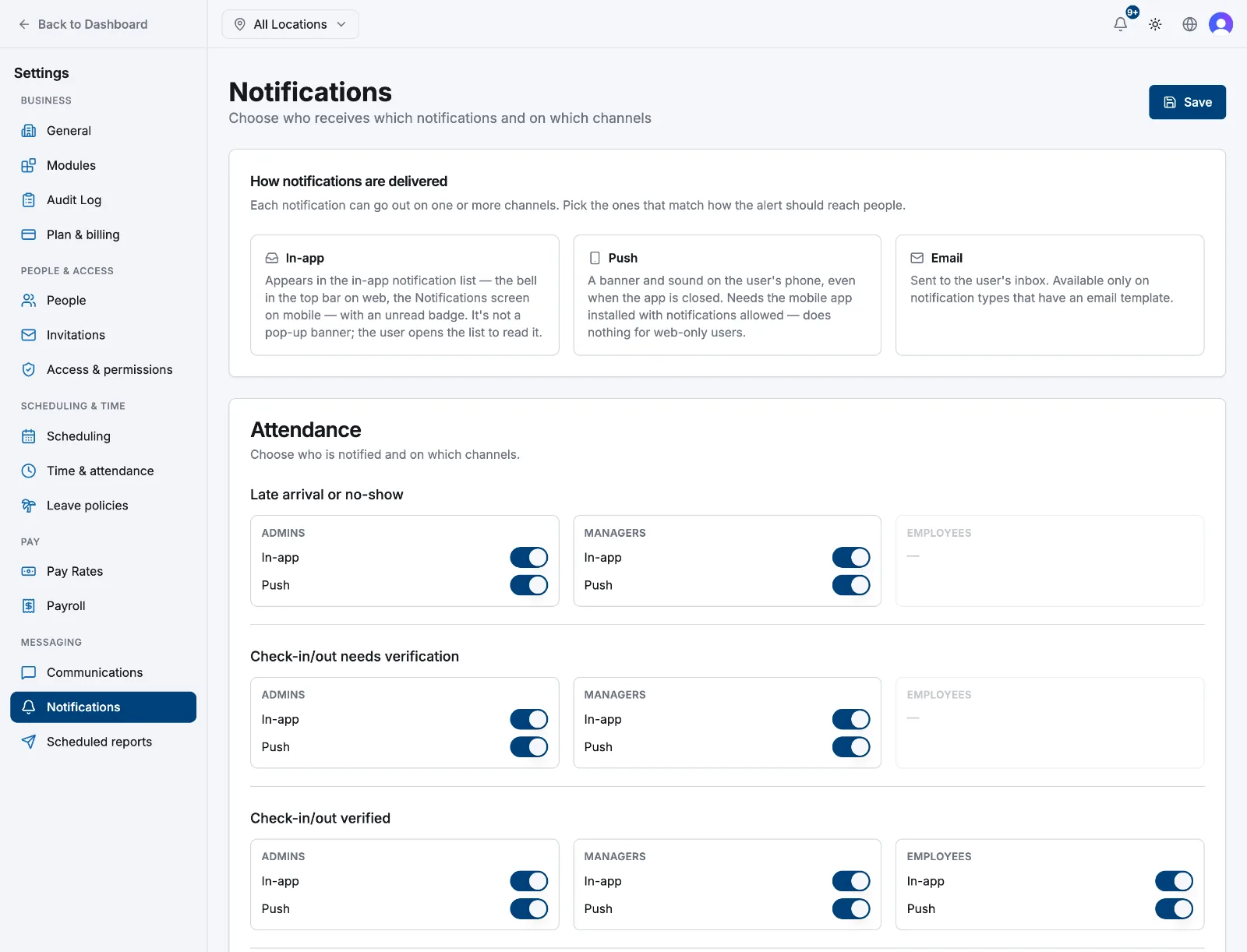
These land in the in-app list (the bell on web, the Notifications screen in the app) and can also go out as push. Out of the box, New shift assigned, Shift updated and Shift cancelled are in-app only; Open shift available goes in-app and push to employees at that location, and Open shift claimed goes as push to the manager who created the shift. Scheduling has no email notifications.
Related articles
Still need help?
Contact support