
Celebrations and contact visibility
Birthday and work-anniversary nudges, and who can see a coworker's phone number.
Two people settings live together on Settings → People: whether Atteny highlights birthdays and work anniversaries, and who may see a coworker's phone number.
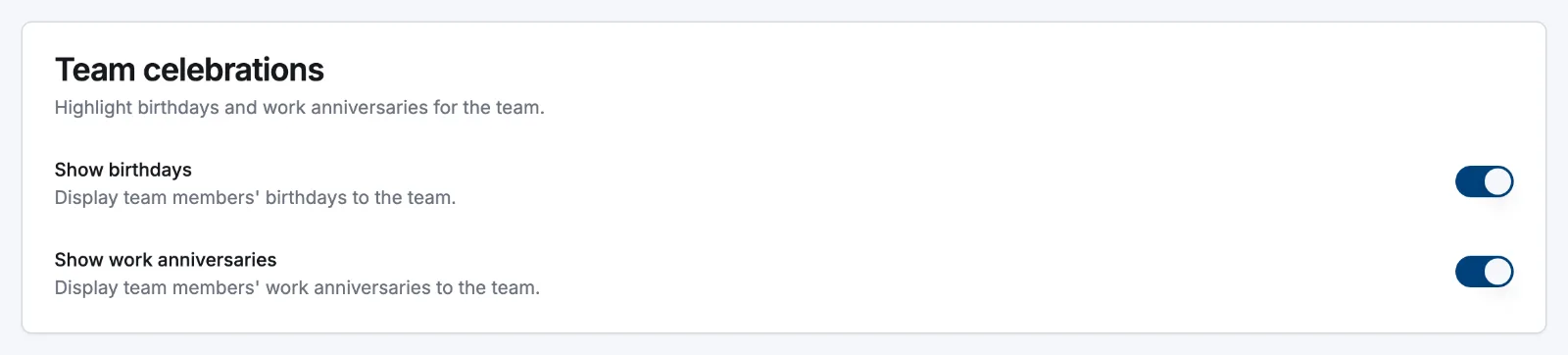
Team celebrations
- 1
Turn the toggles on
Go to Settings → People and find Team celebrations. Switch on Show birthdays, Show work anniversaries, or both, then select Save.
- 2
Make sure the dates are filled in
Birthdays come from Date of birth on a person's Personal tab. Everyone can always fill in their own, whatever your self-service settings say. Anniversaries come from Start Date on the Employment tab, which an admin or manager sets.
- 3
Watch the Dashboard
A Team celebrations card appears at the bottom of the Dashboard for everyone in the company. It looks 30 days ahead and labels each entry Today, Tomorrow or in X days: birthdays first, then anniversaries, soonest at the top of each group.
Only active people appear, and work anniversaries start at the first full year: someone who joined last month isn't listed. Ages and birth years are never shown, only the day and month.
Who can see phone numbers
Contact info visibility decides whether phone numbers reach the rest of the team. The default is Managers & admins only.
| Setting | Admins | Managers | Everyone else |
|---|---|---|---|
| Managers & admins only (default) | Phone shown | Phone shown | Phone hidden |
| Everyone | Phone shown | Phone shown | Phone shown |

The number is stripped out on the server, so it never reaches a browser that isn't allowed to see it. The setting covers the phone number only. Names and work email addresses stay visible to anyone who can open the team list.
Managers see full profiles only for people at the locations assigned to them. Anyone outside that scope falls back to the limited view a coworker gets. See Employee profiles.
Related articles
Still need help?
Contact support