
NFC tags
Register a tag for a location, program it from the phone, and optionally require a tap to clock in.
An NFC tag is a sticker or card you leave by the door or the till. An employee holds a phone against it and Atteny opens on their clock-in with the location already picked. Their side of it is NFC tap to clock in. Tags belong to a location, so you register each one there.
- 1
Open the location's Clock-in tab
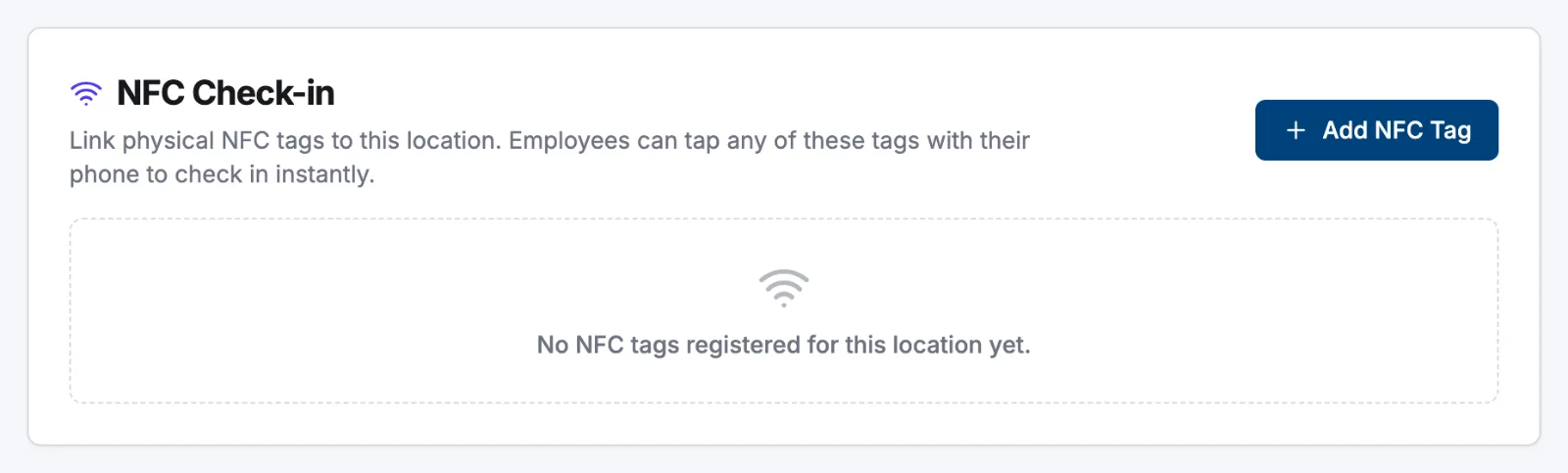
Go to Locations, open the location, then select Clock-in. Registered tags sit in the NFC Clock-in card with their Label, NFC Tag UID and Status.
- 2
Add a tag
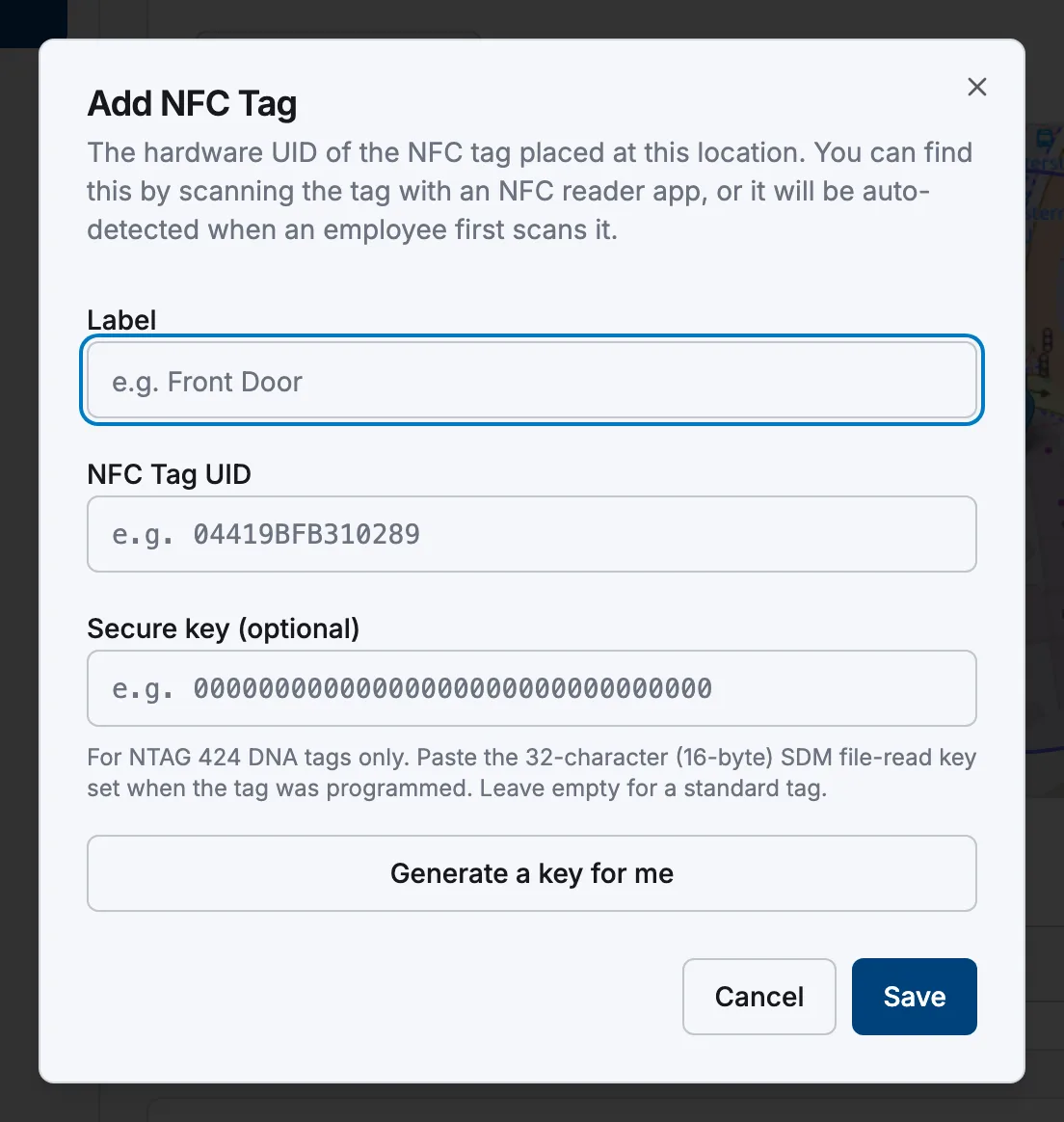
Select Add NFC Tag, name it after the entrance it covers (for example Front Door), enter the NFC Tag UID and save. Add as many as the site needs: every active tag works for that location.
- 3
Decide whether tapping is required
As soon as one tag exists, an NFC Enforcement card appears with Require NFC for clock-in. It starts on: people must tap, and the button in the app is blocked. Turn it off to allow both, then select Save at the top of the page.
- 4
Retire a tag
Use the pencil icon to rename a tag or set it to Inactive (kept on the list but no longer accepted) or the bin icon to delete it. Every change is recorded in the audit log.
Programming a tag from the phone
Admins get More → Manage NFC Tags in the app. Pick the location, tap +, then choose:
- Standard: Scan card writes this location's clock-in link onto a blank tag and reads its UID in the same tap. Then Save.
- Secure: Program card (NTAG 424) sets up a blank NTAG 424 DNA card end to end: key, link and signing in one tap.
On Android, switch NFC on first if the screen shows NFC Is Turned Off.
Standard or secure
| Standard tag | Secure tag (NTAG 424 DNA) | |
|---|---|---|
| What proves the tap | The tag's UID | A signature the card makes fresh on every tap, plus a tap counter |
| A copied tag | Would pass: anyone who taps can read the UID | Rejected, and a re-used tap is refused too |
| GPS | Still applies if the location requires it | Not required: a verified tap is proof enough |
| You need | Any writable NFC tag | A blank NTAG 424 DNA card and its secure key |
Secure tags are switched on per location: on the same Clock-in tab, turn on Require secure NFC tap (NTAG 424 DNA). Atteny won't let you until a secure tag is registered, because in that mode nothing else is accepted. To register a card programmed elsewhere, enter its UID and paste the Secure key (optional), or use Generate a key for me: the key and the Card URL to program are shown once, so save them there and then.
Related articles
Still need help?
Contact support