
Locations
Create a site, drop its GPS pin, and tour the per-location settings that change how it runs.
A location is a site your team works at, and the anchor for most of Atteny: people clock in against it, and it carries its own check-in, scheduling and timesheet rules. The quick version is Add your first location.
- 1
Create or edit a location
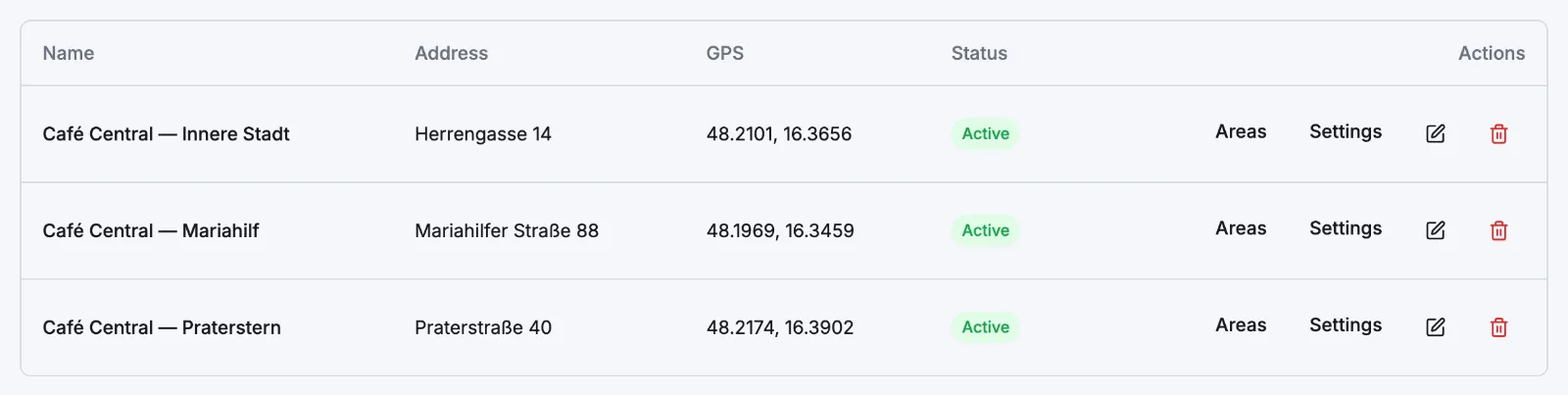
Select Locations in the sidebar. Add Location opens a dialog with Name (required), Address, and optional GPS Latitude, GPS Longitude and Radius (meters). The pencil icon on any row reopens the same fields as Edit Location.
- 2
Drop the GPS pin
Open Settings on the row, then the Check-in tab. In GPS Location, select Locate on Map, then click the map or drag the pin to the exact spot — Latitude and Longitude come from the map, not from typing. Set the Geofence Radius (meters) and Save. See GPS checks.
- 3
Deactivate one you've closed
The trash icon asks to confirm, then marks the location Inactive. It's never deleted, so past timesheets keep their site.
The settings tabs
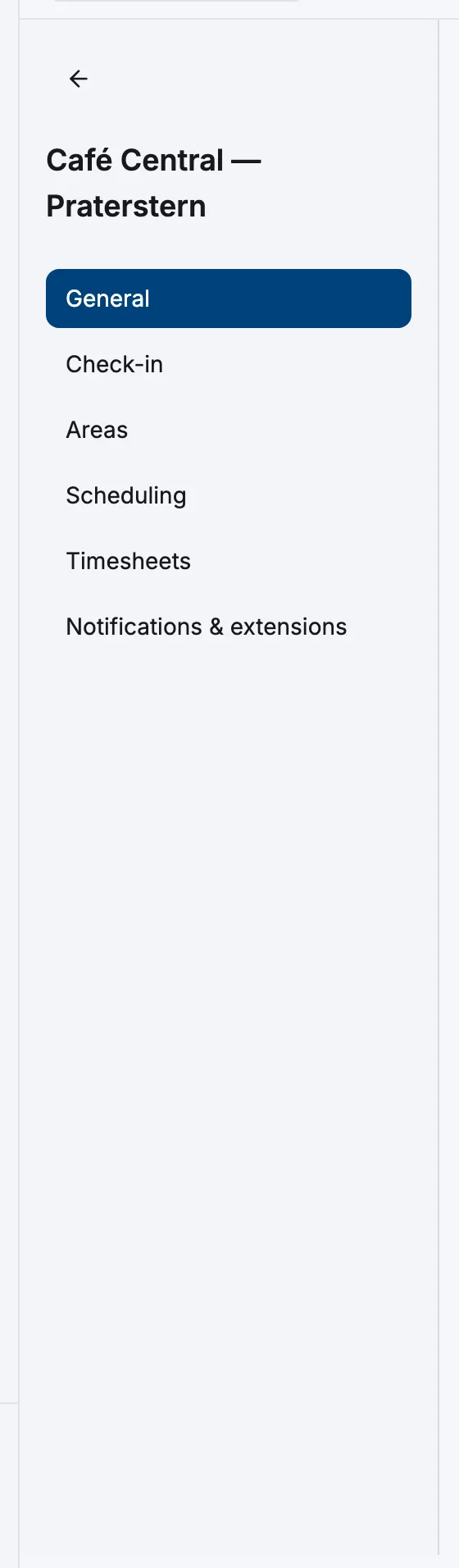
| Tab | What it controls | More |
|---|---|---|
| General | Name, address, city, postal code. Country is read-only, inherited from Settings → General. | — |
| Check-in | GPS pin and geofence, registered NFC tags, Require NFC for clock-in, Require GPS confirmation, secure NTAG 424 DNA tap. | NFC tap to clock in |
| Areas | The parts of the site a shift can name — Bar, Kitchen, Till. | Areas |
| Scheduling | First day of week, default shift and break length, each day's shifts and people needed, Expected Weekly Hours, Lateness Grace Period, swap approval, open shifts. Hidden when the Scheduling module is off. | Operating hours |
| Timesheets | Early clock-in rules, break rounding, what managers may do here, and the auto-close windows for forgotten shifts. | Forgotten clock-outs |
| Notifications & extensions | A placeholder — nothing to configure yet. Notifications live in Settings → Notifications. | — |
Related articles
Still need help?
Contact support