
Clock-ins that wait for a manager's approval
Why a clock-in is held for approval, what the employee sees while waiting, how a manager decides, and how an admin sets the rule for each location.
When Atteny cannot confirm that someone is at the workplace, it does not have to turn them away. It can accept the clock-in, start the time, and hold the shift until a manager approves it. Each location decides this for itself.
What confirms that someone is on site#
- A tag tap. While a location has an active NFC tag, the tap is required unless an admin switched that off.
- The GPS area. A pin and a radius, with the GPS check switched on. See GPS location checks.
- Review. Nothing confirmed the clock-in, so a manager looks at it.
A clock-in that passes every check the location requires is normally not held. The exceptions are in the list under "If your clock-in is waiting".
If your clock-in is waiting#
The Time clock shows Waiting for your manager to approve this clock-in. Your time is being recorded.
- Your shift runs as usual. Take breaks and clock out as you normally do.
- You cannot start a second clock-in while this one waits.
- In Timesheets the shift is marked Under review. It stays that way after you clock out, and its hours do not count until a manager approves it.
- When a manager decides, you get a notification. If the clock-in is rejected, you see the reason and you can clock in again.
A clock-in can wait for several reasons:
- Your location reviews every clock-in that no tag or GPS check confirmed, or every clock-in. Nothing went wrong.
- Your phone's position was too rough to prove where you were.
- The tag could not be read, or GPS put you outside the area, and you asked for approval.
- You clocked in sooner after your last shift than your company's minimum rest allows.
- You clocked in with no connection and the time could not be confirmed, or your location reviews every clock-in made without a signal. See Clock in without a signal.
Ask for approval when the tag or GPS fails#
After one to three failed tries at the same location, depending on what went wrong, the app offers Request approval or Request Manager Approval. Add a note for your manager and tap Submit for Verification. If you cancel a tag scan you started with Scan NFC Tag, the app offers the same route at once.
With several tag locations, a tag that will not read is not counted and a cancelled scan only shows the location list. Tap your location there and confirm: the offer comes after the failed tries from the list.
Asking for approval does not get round a too-early clock-in where your location blocks those.
Approve or reject a waiting clock-in#
Managers of the location and admins are notified when a clock-in is held.
Open Timesheets. The clock-in is in the Pending Clock-out Verifications card, with the reason it is waiting.
- Approve puts the employee properly on the clock. The shift keeps running.
- Reject asks for a reason, which the employee sees.

Open More, then Approvals, and choose Verifications. Tap the clock-in and tap Approve. Rejecting is done on the web.
Everything else about the queue is in Review held shifts: the verification queue.
Set the rule for a location#
- 1
Open the location's Clock-in tab
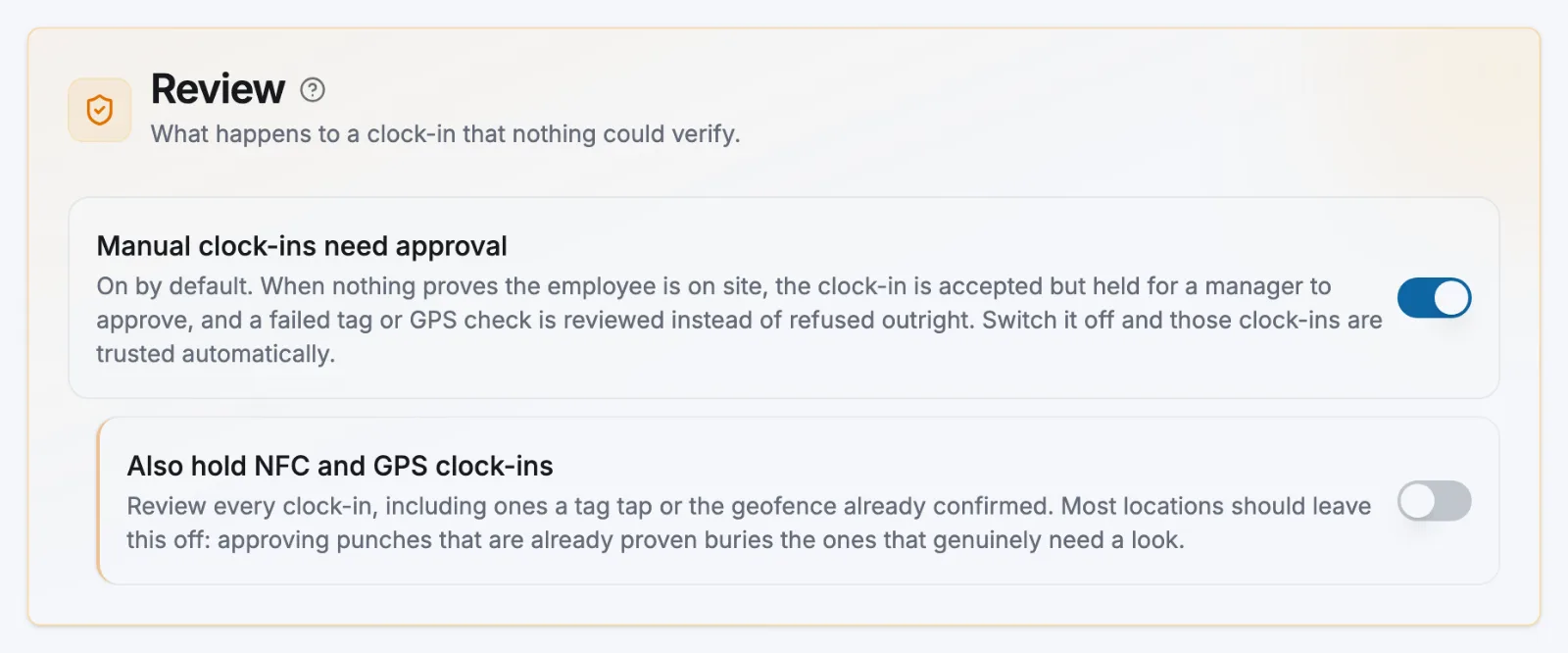
Go to Locations, open the location, then select Clock-in. Find the Review card.
- 2
Choose what happens to an unconfirmed clock-in
Manual clock-ins need approval is on for a new location. A location created before this rule existed has it off until you switch it on.
- On: a clock-in that nothing confirmed is accepted and held for a manager. A failed tag tap is held as well, not refused.
- Off: at a location with no tag and no GPS area, a clock-in is accepted with no check and no review. A failed tag tap is refused until the employee asks for approval.
A failed GPS check is first stopped on the phone either way. The employee moves closer or asks for approval.
- 3
Decide whether to review every clock-in
Also hold NFC and GPS clock-ins also holds clock-ins that a tag or the GPS check confirmed. It only works while the first switch is on. Most locations leave it off.
- 4
Save
Select Save at the top of the page. If nothing happens on an older location, set the switch in the phone app instead (see below). After that the web tab saves too.
These switches change clock-ins only. A clock-out without the required tag tap still needs the employee to ask for a review.
On the phone, an admin finds the same switches under More, then Clock-in setup. The Offline clock-ins card on the same web tab is covered in Clock in without a signal.
A location keeps one way of confirming presence#
Three things count: a tag with the tap required, a complete GPS area with the GPS check on, or Manual clock-ins need approval. Atteny refuses a change that would switch off or remove the last one.
- A new location starts with review on, so you can switch review off only after you add a tag or a GPS area. An older location that has none of the three stays editable: the rule only stops a removal.
- When you remove the last tag from a location that has a complete GPS area, with the GPS check and review both off, Atteny asks first. It then switches the location back to the GPS check.
Related articles
Still need help?
Contact support