
Clock in without a signal
Clock in, take breaks and clock out with no connection. What the phone saves, what happens when it is sent, and what managers and admins see.
A cellar, a cold store, a dead spot: the phone app keeps working without a connection. It saves each clock-in, break and clock-out on your phone and sends them by itself later.
- 1
Clock in as you always do
Open the Time clock (the round button in the middle of the bottom bar). Tap the tag or pick your location, then confirm. The app says Clocked in, saved on your phone.
While Atteny cannot be reached, the Time clock also offers Manual clock in. It sends the clock-in to a manager for review. If you work at several locations it shows the list instead: tap yours. If exactly one of them requires a tag, the request is made for that one.
- 2
Take your breaks
Start Break and End Break work the same way. The app says Break started, saved on your phone and Break ended, saved on your phone.
- 3
Clock out
Tap End Shift. The app says Clocked out, saved on your phone. During a shift the Time clock also offers Manual clock out while Atteny cannot be reached, except during a break.
- 4
Check what is still waiting
The Time clock shows how many punches are still on your phone, for example 1 punch waiting to send. They are sent automatically.
When your punches are sent#
Each punch is recorded at the time it happened, not the time it arrived. Apart from the time, it is judged like the same punch made with a signal:
- You passed the checks your location requires (the tag where the tap is required, the area where GPS is checked): it counts straight away, as it would with a signal (one exception at a secure tag is below). Where the tap is required, tap the tag also without a signal: a clock-in from the location list is refused or held when it arrives.
- Your location checks where you are, and you were outside its area or your phone had no position: it is not refused. It is saved as a manual clock-in and a manager reviews it.
- The time cannot be confirmed: a manager reviews it. This happens when your phone's time had to be corrected, when the app was restarted before it could send, or when the punch arrived more than 12 hours late.
A doubtful punch is never thrown away. It is kept and shown to a manager.
A saved clock-in can be refused when it arrives, for example because a manager had already started that shift for you or, at a secure tag, because a colleague's later tap reached Atteny before yours. The app then tells you A saved punch couldn't be recorded. What your phone recorded for that shift is not lost: your manager sees the times and can correct the shift from them. A saved clock-out or break that arrives after the shift was already closed is not recorded: tell your manager the real time. Neither is a saved clock-out at a secure tag that a colleague's later tap overtook: the shift stays open, so clock out again and tell your manager the real time. If a manager rejected your clock-in in the meantime, nothing more is recorded on it, and you clock in again.
A shift a manager still has to look at is marked Under review under Timesheets. Its hours do not count until it is approved.
What managers see#
Shifts with offline punches carry a marker on the row in Timesheets, in the review queue and in the Action Center on the Dashboard. On the Timesheets row the three markers read:

-
Clocked offline: recorded offline, and its time was confirmed. Nothing to do.
-
Clocked offline · unconfirmed: the time could not be confirmed. Check it.
-
Offline times: the phone recorded times that were never applied. Open the edit dialog to compare them with the shift.
The review queue and the Dashboard spell the second one Clocked offline · time unconfirmed. For the third, the review queue shows a block titled Captured offline: never applied.
On the phone these marks appear in your approvals, on Home and in the approval's detail. Employees do not see them on their own timesheets.
A shift is held in Pending Clock-out Verifications when an offline time cannot be confirmed, on a clock-in, a clock-out or a break, and whenever the location reviews all offline punches (below). Approve it there once the times are right. See Review held shifts: the verification queue.
The location's switch for admins#
- 1
Open the location's Clock-in tab
Go to Locations, open the location and choose Clock-in.
- 2
Find Offline clock-ins
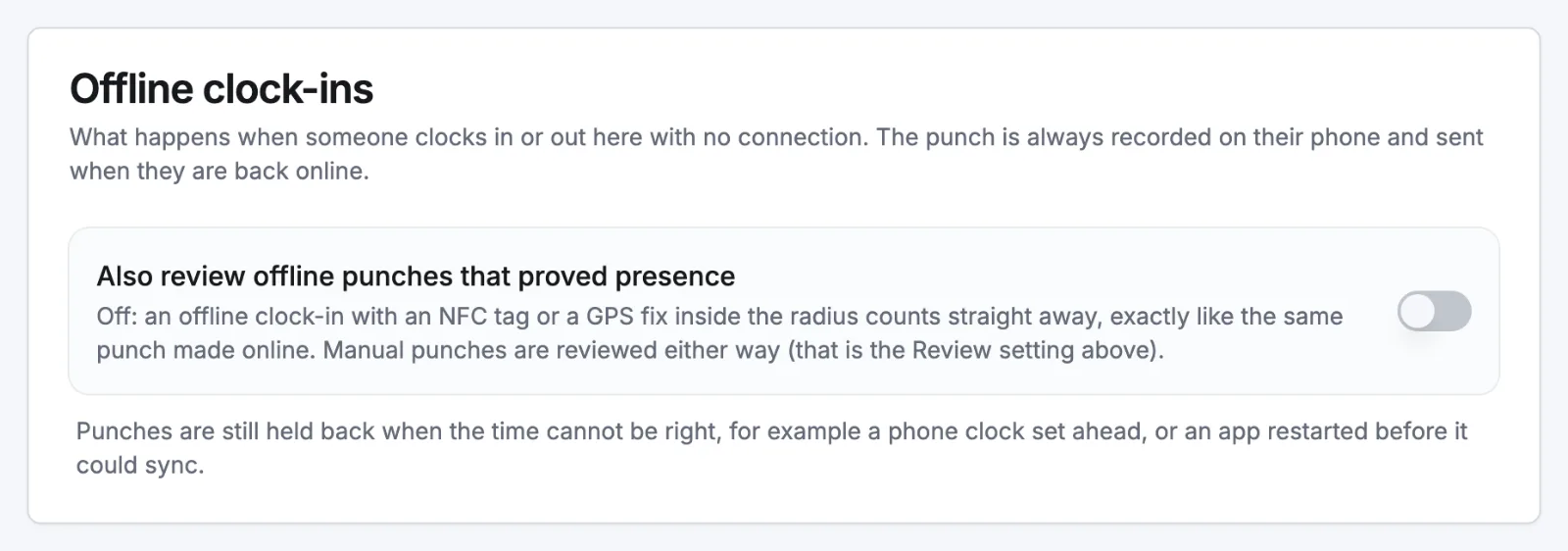
The card Offline clock-ins has one switch: Also review offline punches that proved presence.
- 3
Choose and save
- Off (the default): an offline punch is judged like the same punch made with a signal.
- On: every offline clock-in and clock-out at this location waits for a manager.
Select Save.
Either way, a punch whose time cannot be confirmed is always held.
On the phone the same switch is under More, Clock-in setup, Offline. Use it if saving the tab on the web does nothing on an older location.
Related articles
Still need help?
Contact support