
Breaks
Taking breaks on your shift, plus how scheduled breaks, paid and unpaid time, and rounding are handled.
Every break is recorded on the timesheet as its own entry with a start time, an end time and a length. Unless your admin marks breaks as paid, that time comes off the worked hours for the shift.
Breaks are started and ended in the phone app, the same place you clock in.
- 1
Tap Start Break
On the Active Shift card on Home, or on the Clock In tab, tap Start Break. The big timer switches to break time and your shift stays open.
- 2
Tap End Break when you're back
Tap End Break to go back on the clock. If your location uses an NFC tag, hold your phone against the tag to end the break, the same tap you use to clock out.
- 3
Check My Day Log
Below the timer, My Day Log lists your shift and every break, with times and lengths.
Admins set how long breaks should be and whether they're deducted.
- Scheduled break length: set Break Minutes on a shift in Schedules. The field only applies to shifts of 6 hours or more, and pre-fills from Locations → your location → Scheduling → Default break duration (minutes).
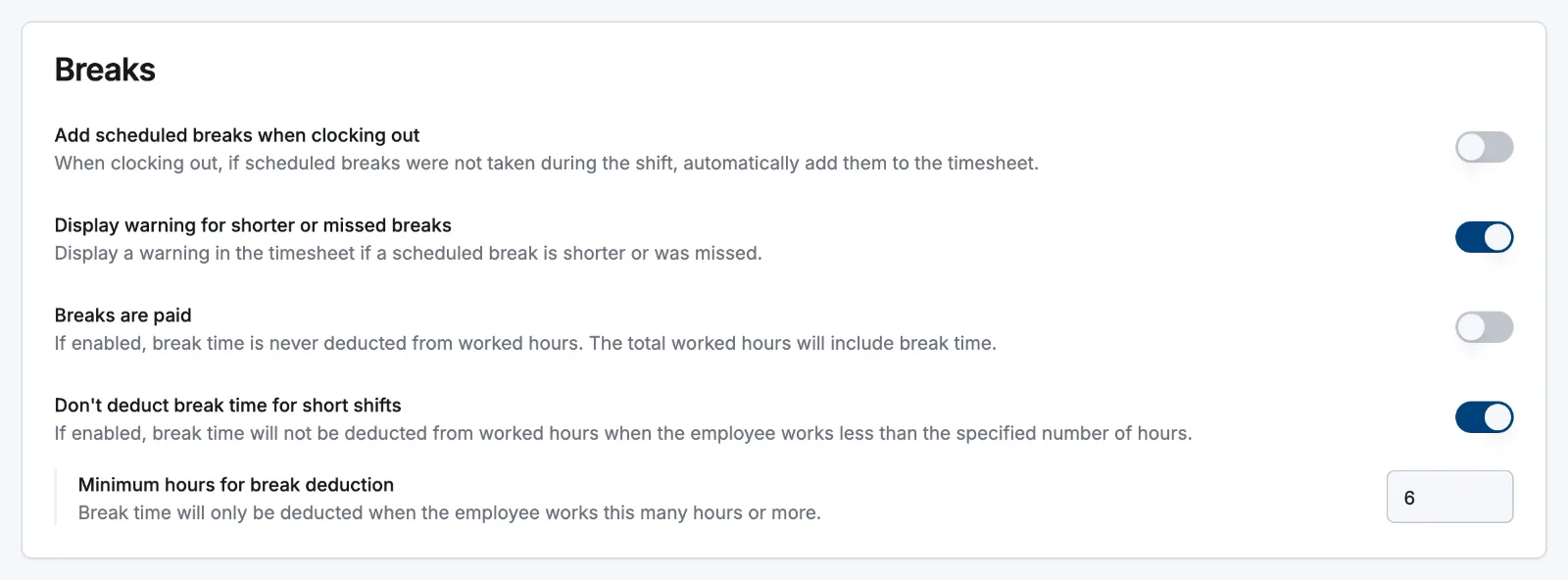
- Settings → Scheduling → Breaks (needs the Scheduling module on):
- Add scheduled breaks when clocking out: off by default. When on, a scheduled break that wasn't taken is added to the timesheet at clock-out.
- Breaks are paid: off by default. When on, break time is never deducted and worked hours include it.
- Don't deduct break time for short shifts: on by default, with Minimum hours for break deduction set to 6 hours.
- Display warning for shorter or missed breaks: on by default. Adds Missed break, Short break or Break ended early flags to the timesheet.
- Locations → your location → Timesheets → Break rounding: turn on Round break time up to scheduled duration so a break shorter than the scheduled one is recorded at the full scheduled length.
Related articles
Still need help?
Contact support