
Editing and adding timesheets
Fix a wrong time, add a missing shift, and control who is allowed to.
People forget to clock out, tap in at the wrong site, or work a shift the app never recorded. Correct all of it from Timesheets.
Fix a wrong time
- 1
Find the shift
Open Timesheets and use the Daily, Weekly or Monthly view and the date arrows to reach the day.
- 2
Open the entry
Select the pencil icon on the row.

- 3
Change what's wrong
You can change Date, Location, Clock In, Clock Out, Brk Start, Brk End, Notes and Status (Pending, Approved or Rejected). Leaving Clock Out empty keeps the shift open.
- 4
Select Save Changes
Atteny recalculates the hours, the break deduction and the week's overtime. Overtime is time beyond the weekly contracted hours, so a fix on Monday can change Friday's split.
- 1
Open the Action Center
Pending shifts sit under Timesheets. Tap the one you want.
- 2
Tap Edit
Correct Clock in (HH:MM) and Clock out (HH:MM), and add a manager note if it helps.
- 3
Tap Approve
The correction is saved and the entry approved in one step. The app can't create a missing shift: use the web app for that.
Add a missing shift
- 1
Select Add Entry
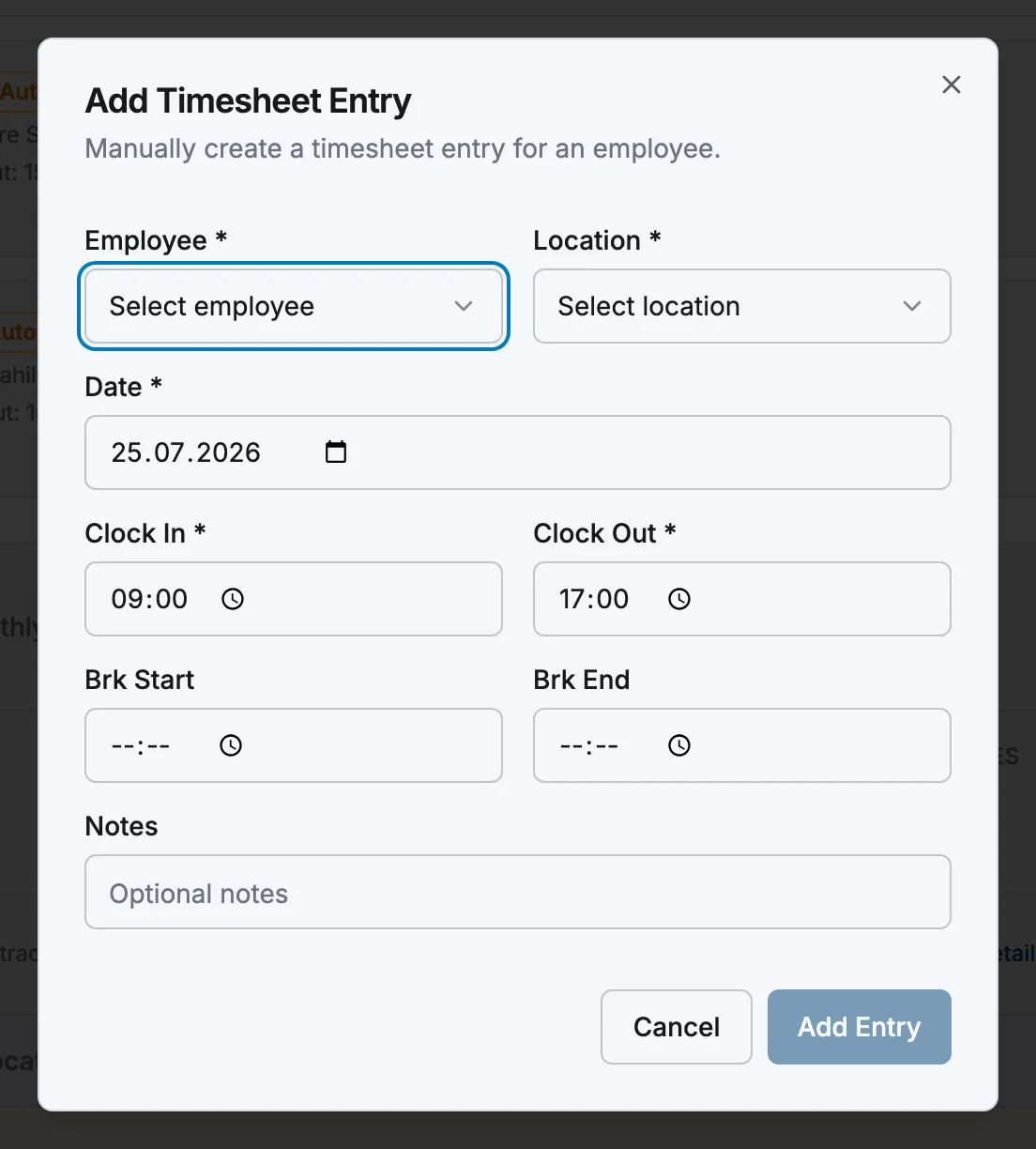
On Timesheets in the web app, select Add Entry in the top-right corner.
- 2
Fill in the shift
Pick the Employee, Location and Date, then Clock In and Clock Out. Breaks and notes are optional; where the location adds scheduled breaks automatically, Atteny applies them.
- 3
Save it
An admin's entry is approved straight away. A manager's goes to Pending unless that location has Manager adds/edits require admin approval switched off.
When an approved entry changes
A corrected entry carries an Edited badge: hover it to see who edited it and when. If a manager edits an entry at a location that requires admin approval, the status drops back to Pending for an admin to approve again. An admin's edit keeps whatever status is in the dialog.
Adds, edits and deletes are recorded in Settings → Audit Log as Timesheet updated, Timesheet created manually and Timesheet deleted, with the old and new times. If your edit closes a shift that was still running, the employee is notified that you clocked them out.
Who is allowed to edit
The toggles are per location, under Locations → (your location) → Timesheets → Manager permissions: Allow managers to manually add timesheet entries, Allow managers to edit timesheet entries and Manager adds/edits require admin approval. Settings → Manager permissions decides how much a manager can see, not what they may change.
Related articles
Still need help?
Contact support