
Fixed Hours or Custom Shifts?
Atteny can run on repeating weekly hours or on shifts you build each week. Here is how to pick.
Atteny plans work in one of two ways, and the choice changes what the whole app shows. You set it in Settings → Scheduling under Schedule Mode, and it applies to your entire company.
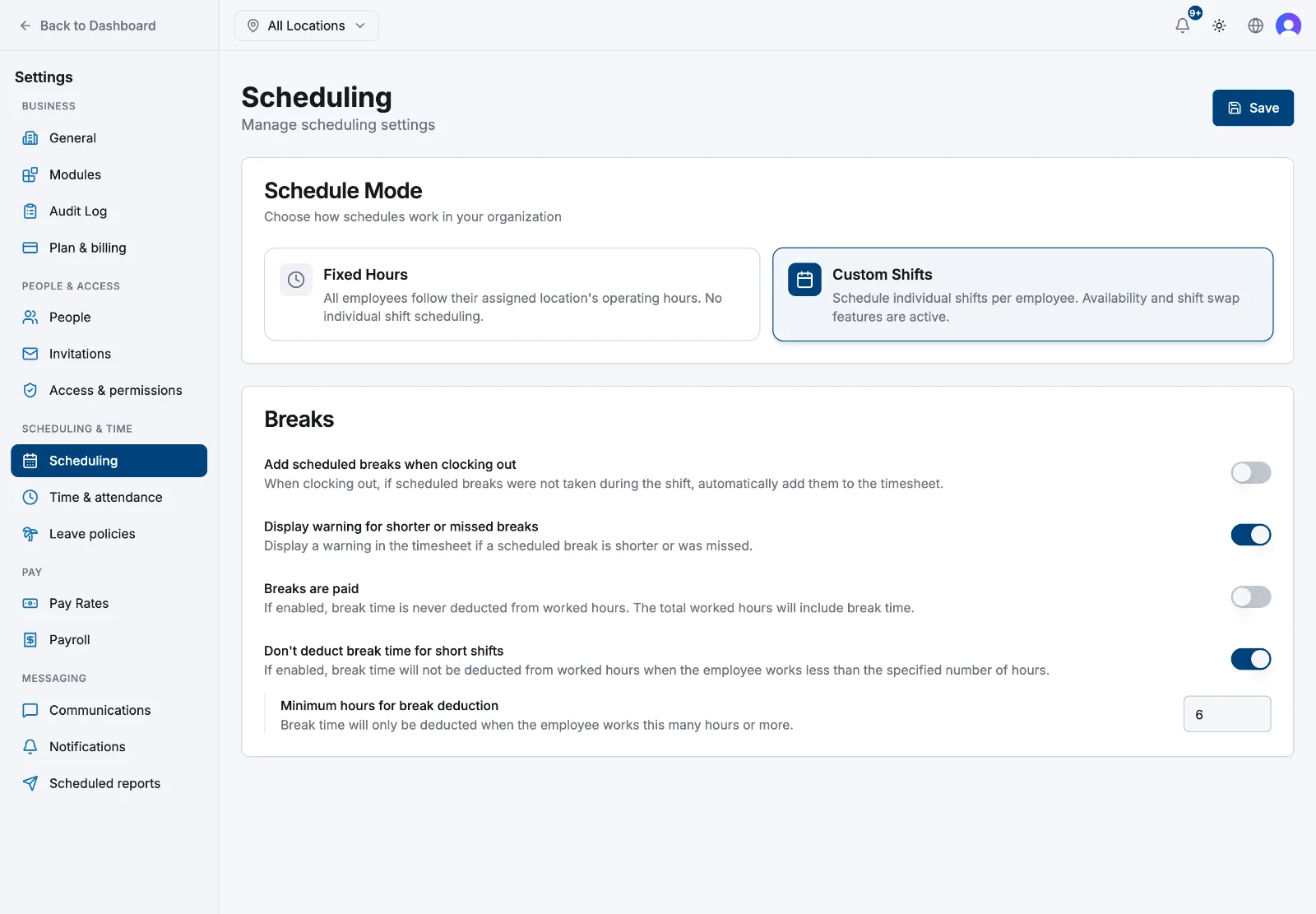
Fixed Hours
All employees follow their assigned location's operating hours. No individual shift scheduling. Nobody builds a rota. Everyone assigned to a location is expected for that location's opening hours, week after week.
- Each person's day is worked out from the location's Operating hours, set in Locations → your location → Scheduling.
- Adding, editing and deleting shifts is switched off.
- Availability, Shift swaps and Open shifts disappear from the Schedules menu: they have no meaning without per-person shifts.
- The Dashboard gains an attendance panel (On time today, Late today) and lateness in the hours report is measured against those opening hours.
- In the app, an employee's Schedule tab shows a Fixed Schedule card listing their location's hours day by day.
Custom Shifts
This is the default. You build shifts per person, per day, on the Schedules grid. See Building the week.
- Availability, open shifts and shift swaps are all active.
- Lateness and expected hours are judged against each planned shift, not against opening hours.
- The Dashboard compares scheduled against actual hours for the week.
Which one suits you
Pick Fixed Hours when the same people work the same hours every week: an office, a clinic, a shop with a settled rota. Pick Custom Shifts when who-works-when changes weekly, as in most cafés, restaurants and retail.
Related articles
Still need help?
Contact support