
How do I clock in?
Tap the NFC tag at the door or use the button in the app, then start breaks and end your shift from the same screen.
Clocking in tells Atteny you've started work. There are two ways to do it from your phone. Pick whichever is set up at your workplace.
Two ways to clock in
- 1
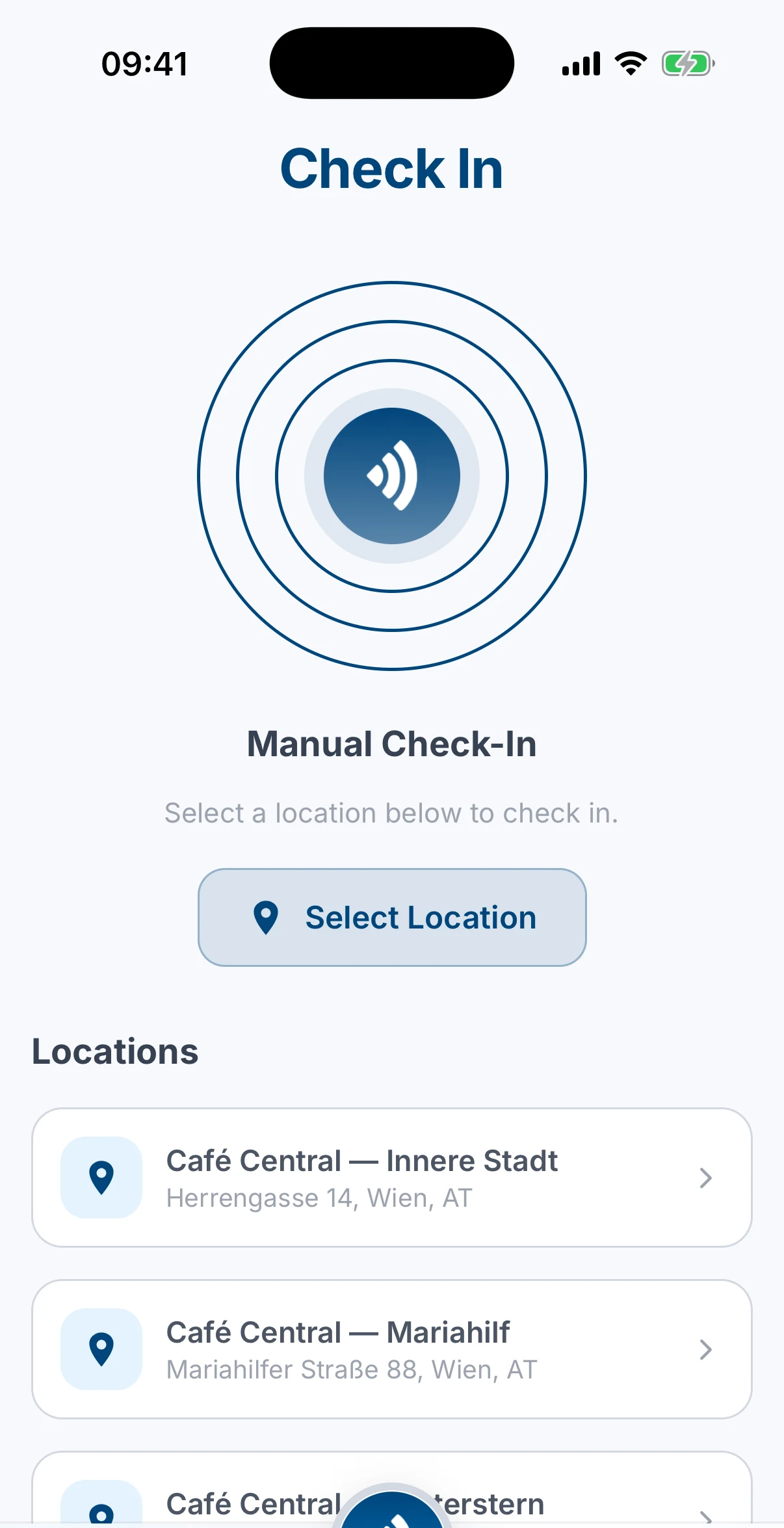
Tap the NFC tag at your location
Hold your phone against the Atteny tag at the door. It opens the app and checks you in automatically, no need to unlock anything first.
- 2
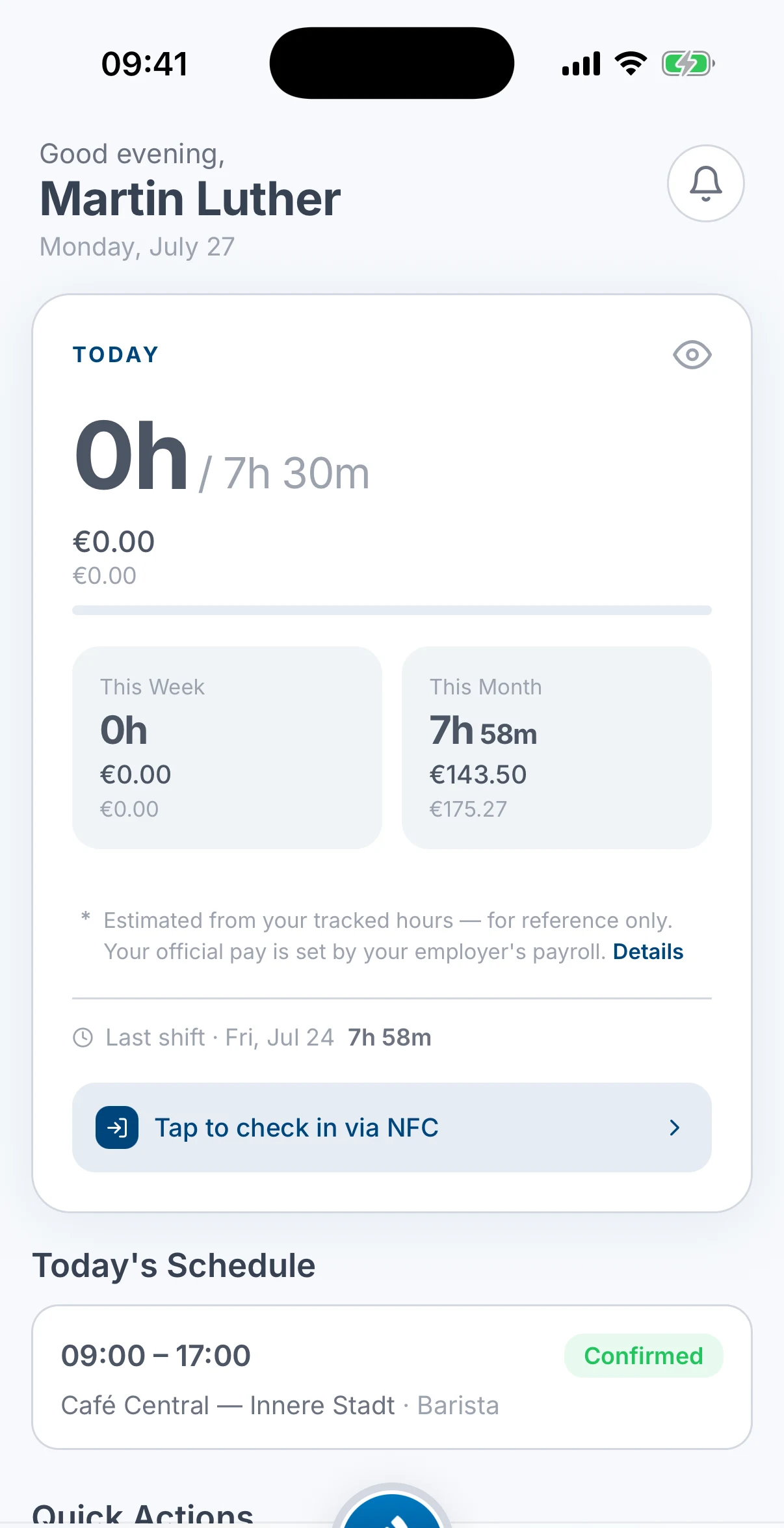
Or use the clock-in card on Home
Open the Home tab and tap the Tap to clock in via NFC card, just below your hours for today.
- 3
Allow location if asked
If your workplace uses the optional location check, allow access when your phone asks. This just confirms you're on site. It's off unless your admin turns it on.
While you're on shift
Once you're clocked in, an Active Shift card appears on Home with a live timer counting your hours.
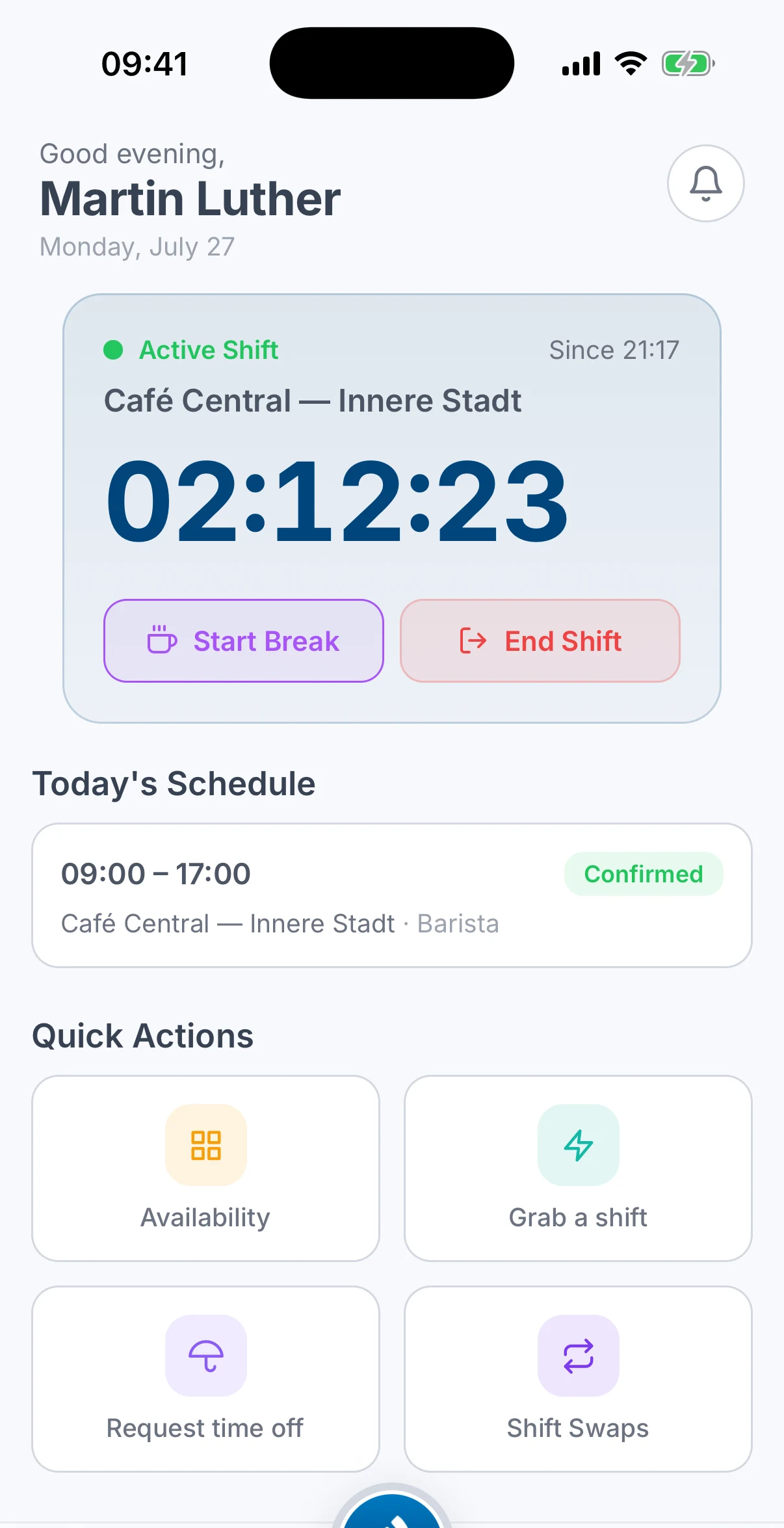
- Tap Start Break when you step away, and End Break when you're back.
- Tap End Shift to clock out at the end of your shift.
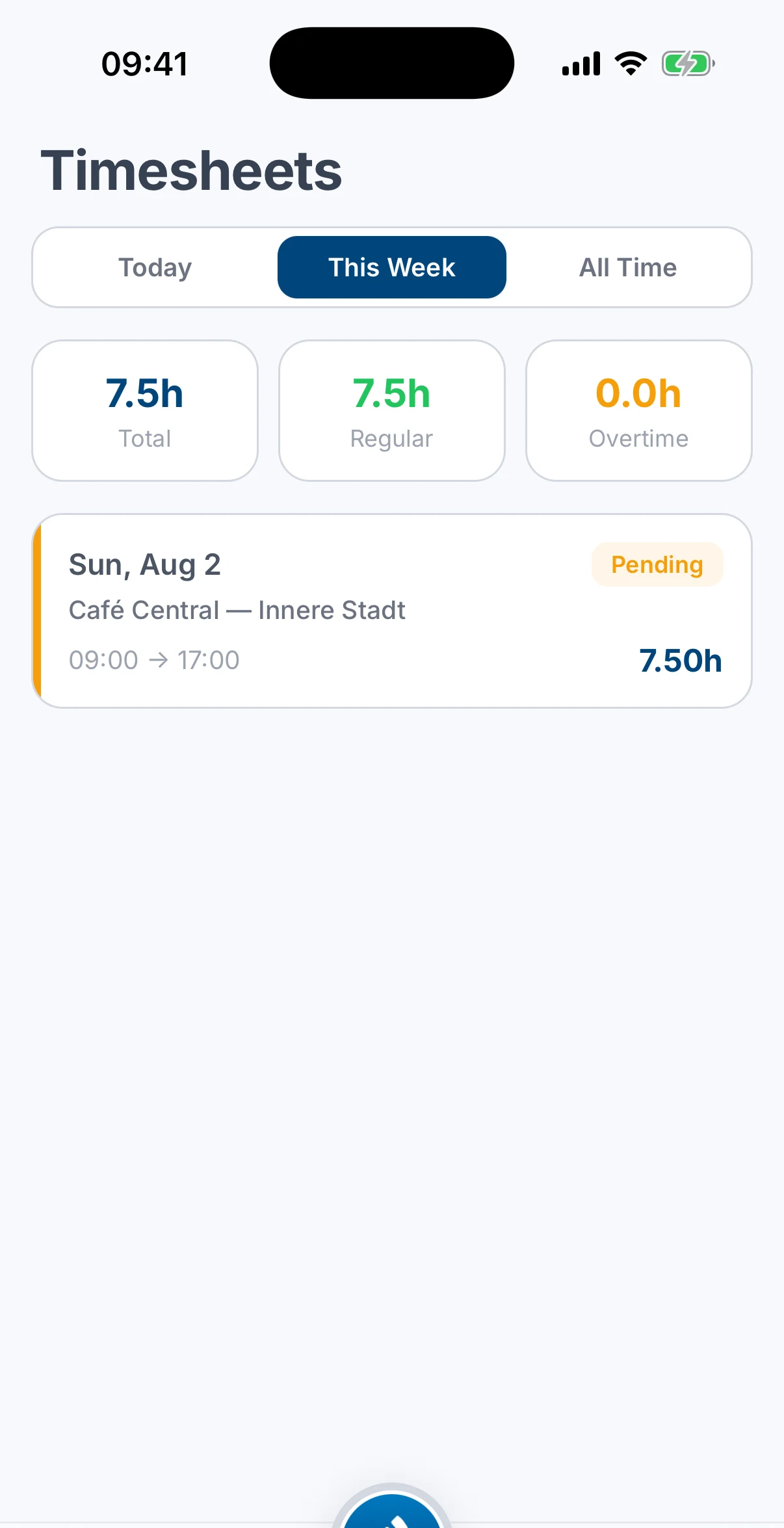
Your hours are saved to your timesheet automatically. The Timesheets tab totals them for today, this week or all time, and each entry shows whether it's still pending your manager's approval.
See How do I see my schedule? to check what's coming up next.
Related articles
Still need help?
Contact support