
Operating hours and staffing demand
Tell Atteny when each location is open and how many people you need: the inputs auto-schedule builds on.
Every location has its own Shifts setup: which hours it's open on each weekday, and how many people each of those shifts needs. This is the raw material Auto Schedule works from. Set it once per location and generating a week takes seconds.
- 1
Open the location's Scheduling tab
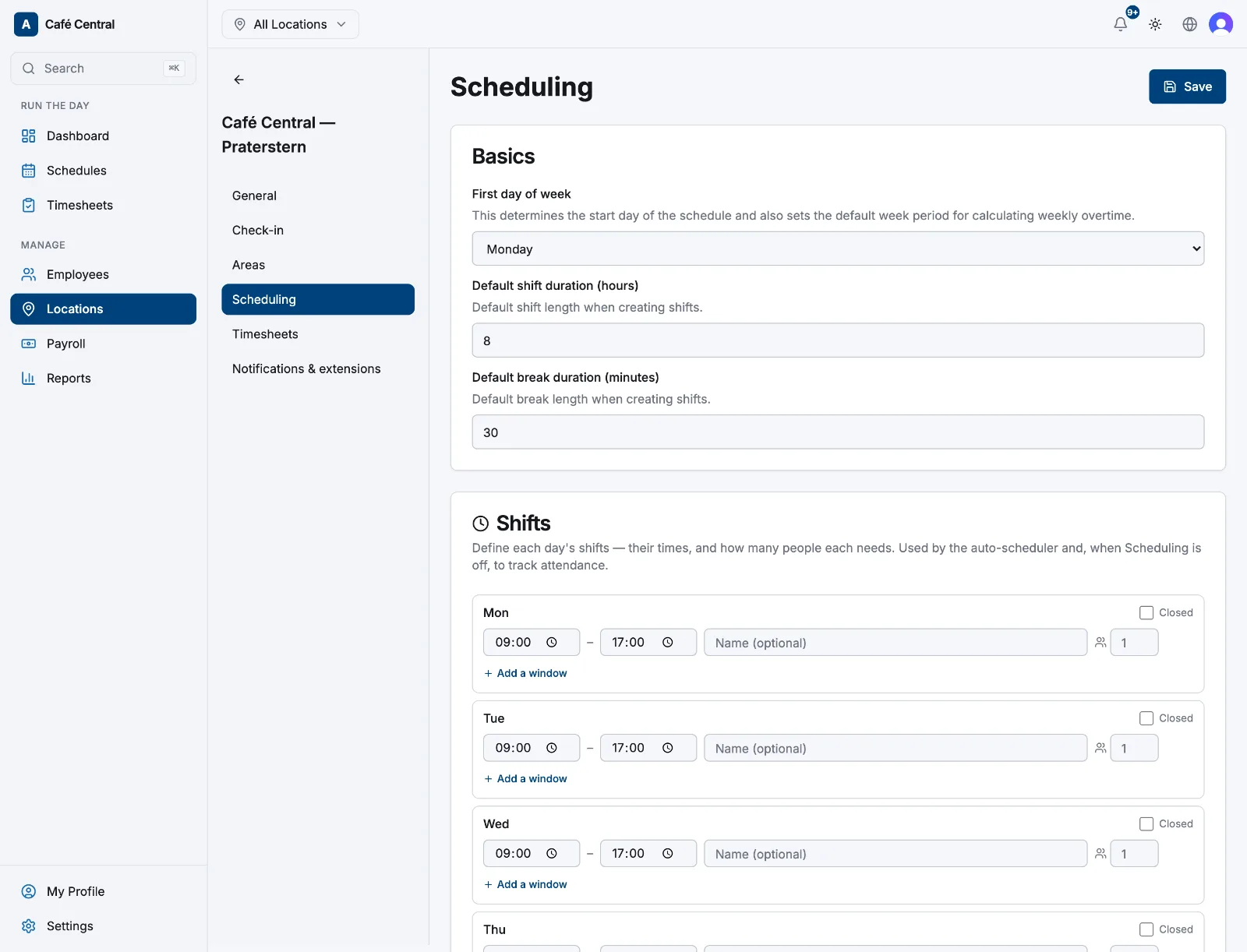
Go to Locations in the sidebar, select the location, then choose Scheduling in the left panel. The Shifts card holds one row per weekday, Monday to Sunday.
- 2
Set the times for each day
Enter a start and an end time. Give the shift a Name (optional) if it helps ("Morning", "Late") and it shows up when you generate a schedule. Tick Closed for days the location doesn't open.
- 3
Split a day into several shifts
Select Add a window to add a second or third shift on the same day, for example 07:00–12:00, 12:00–18:00 and 18:00–23:00. An end time earlier than the start is read as crossing midnight, so overnight shifts work.
- 4
Say how many people each shift needs
Next to each shift is a People needed box. Leave it blank for one person, or enter the headcount you want on the floor for that shift. Demand is set per shift, not per role or per area.
- 5
Save
Select Save. If a shift is missing a time you'll see "Each shift needs a valid start and end time". Fill it in, or tick Closed.
What actually uses these numbers
- Auto Schedule creates one proposed shift per shift window, repeated up to the people-needed figure, and subtracts anyone already scheduled across that window. Demand it can't fill shows in the Unfilled tile, or becomes a claimable open shift if Allow claimable open shifts is on for that location.
- Adjust people per shift (this week) in the Auto Schedule dialog raises or lowers headcount for that one run without touching your saved defaults.
- The Coverage strip on the Schedules page is framed by the earliest opening and latest closing time across your locations.
Related articles
Still need help?
Contact support