
Shift swaps
How a swap travels from request to coworker to manager approval.
A swap hands one scheduled shift from the person who owns it to a coworker. It travels through up to three stages, and the shift only changes hands at the very end.
- 1
The requester sends it
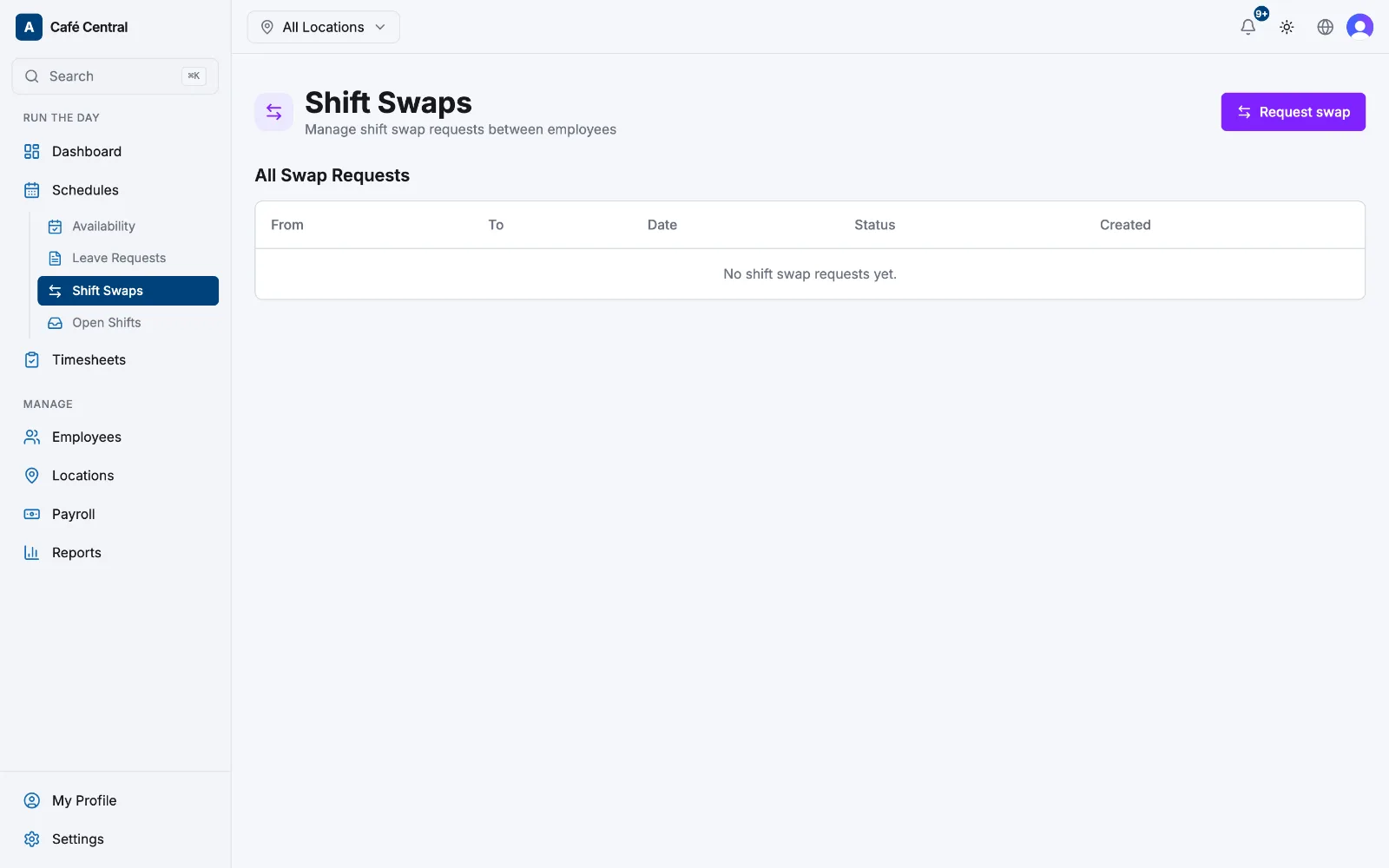
From Schedules → Shift Swaps, select Request swap, pick Your shift, choose a coworker under Swap with, add optional Notes and select Send request. Only your own future shifts are offered, and only coworkers who are free at that time appear in the list. Status: Pending. The coworker gets a push notification and an email.
- 2
The coworker responds
They Accept or Reject it. Rejecting sets the status to Rejected and notifies the requester. Accepting only works if that person is assigned to the shift's location.
- 3
A manager approves
If the location requires approval, the swap parks at Awaiting Approval (the shift has not moved yet) and the location's managers and admins are notified. It also appears on their Dashboard in the Action Center under the Swaps tab with a Review link. Approve reassigns the shift and notifies both people; Decline sets it to Rejected and also notifies both.
Statuses
- Pending: waiting on the coworker.
- Awaiting Approval: the coworker said yes; a manager still has to sign off.
- Approved: the shift now belongs to the coworker.
- Rejected: turned down by the coworker or by a manager.
- Cancelled: withdrawn by the requester, or dropped because the shift changed.
The requester can Cancel at either open stage. Just before the shift moves, Atteny re-checks it: if it has already started, was cancelled or reassigned, or the coworker has since picked up an overlapping shift, the swap won't complete.
Making approval optional
Approval is required by default, per location. Go to Locations, open a location, select Scheduling, and turn off Require manager approval for shift swaps. With it off, the swap takes effect the moment the coworker accepts, and stage three is skipped.
Related articles
Still need help?
Contact support