
Auto-schedule a week
Let Atteny draft the week from your staffing needs and the team's availability, then review before anything is final.
Auto-schedule drafts one week for you. It reads the shifts you've configured for each location, works out how many people each one still needs, and picks staff who are free, then shows you the draft. Nothing is saved until you accept it.
- 1
Pick the week and the scope
Go to Schedules and use the arrows to reach the week you want. The All Locations switcher in the top bar sets the scope: one location, or every location you can see.
- 2
Select Auto Schedule
A draft for that week is generated straight away.
- 3
Adjust people per shift, if needed
Open Adjust people per shift (this week) to change how many people a shift needs for this run only. Your saved defaults in Operating hours and demand aren't touched. The draft refreshes as you type.
- 4
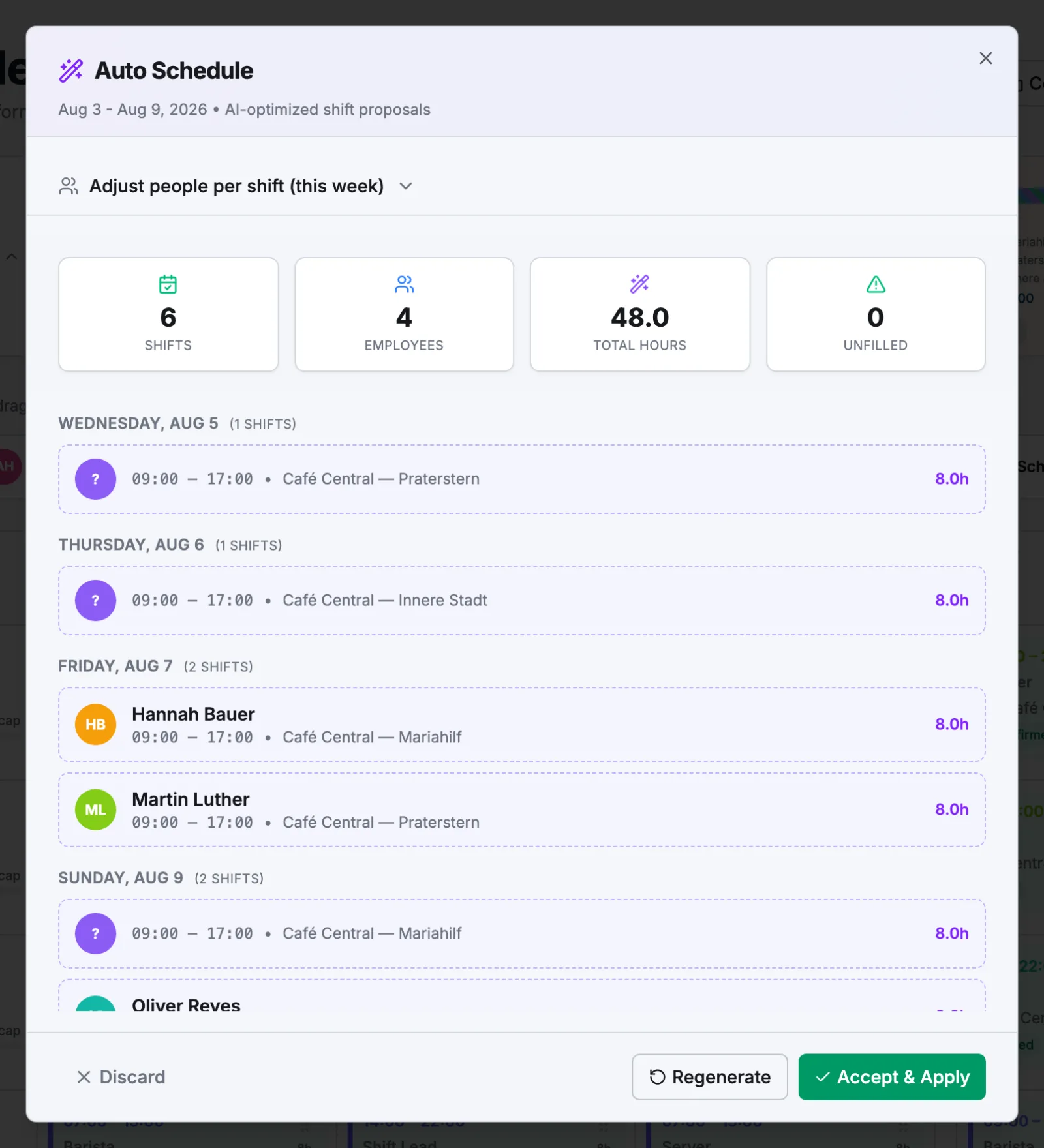
Read the draft
The counters show Shifts, Employees, Total Hours and Unfilled, with every proposed shift listed under its day. Regenerate reshuffles who gets what; Discard throws the draft away.
- 5
Accept & Apply
The shifts are created. Anything that clashes with a shift the person already has is skipped, and the message tells you how many. Each person gets one notification covering all of their new shifts.
What it takes into account
- Each location's shifts and the People needed on each. A day with no shifts set up at all falls back to a single 09:00–17:00 shift; a Closed day gets nothing.
- Approved availability for that exact week. Someone with nothing on file counts as available, and a change still awaiting approval isn't used.
- Approved leave: those people are skipped on those days.
- The monthly hours limit on their employment type (Settings → Pay Rates). It never schedules past it.
- Shifts that already cover a slot, so it only fills what's missing. It also spreads the work: under-scheduled people first, days apart, long runs of consecutive days avoided.
What it won't do
- It ignores weekly contracted hours and overtime. The monthly employment-type limit is the only hard cap, so check the week before you accept. See Overtime and extra hours.
- Location assignment is a preference, not a rule: an administrator's run can place someone at a location they aren't assigned to.
- It leaves Role empty on the shifts it creates.
- It does one week at a time and skips days that have already passed.
- It only blocks overlaps, so two shifts back to back are allowed.
At locations with Allow claimable open shifts on, demand nobody can cover becomes an open shift for the team to pick up. Elsewhere it's only counted under Unfilled.
Related articles
Still need help?
Contact support