
Who is in right now
The live board of who is on the clock, and how to clock someone in or out on their behalf.
Two places tell you who is working right now: the Who's In tile on your Dashboard summarises the day, and the Who's in tab on Timesheets is the live roster where you act.
Reading the Dashboard tile
The big number is how many people have clocked in today, out of how many are scheduled. Chips below it break the day down, and each is hidden at zero:
- working: clocked in, no break running
- on break: clocked in, break running
- late: clocked in after their shift's start time
- no-show: scheduled, start time passed, still not clocked in
An exception strip names the people involved: late 12 min, or a no-show with the time they were due. Both allow for the Lateness Grace Period set per location under Locations → (a location) → Scheduling, 10 minutes by default.

The Who's in roster
Open Timesheets and select the Who's in tab: a searchable list of your team with a count of how many are on the clock. A green dot means the person is working, with Since their clock-in time and the location; a grey dot means Off the clock.
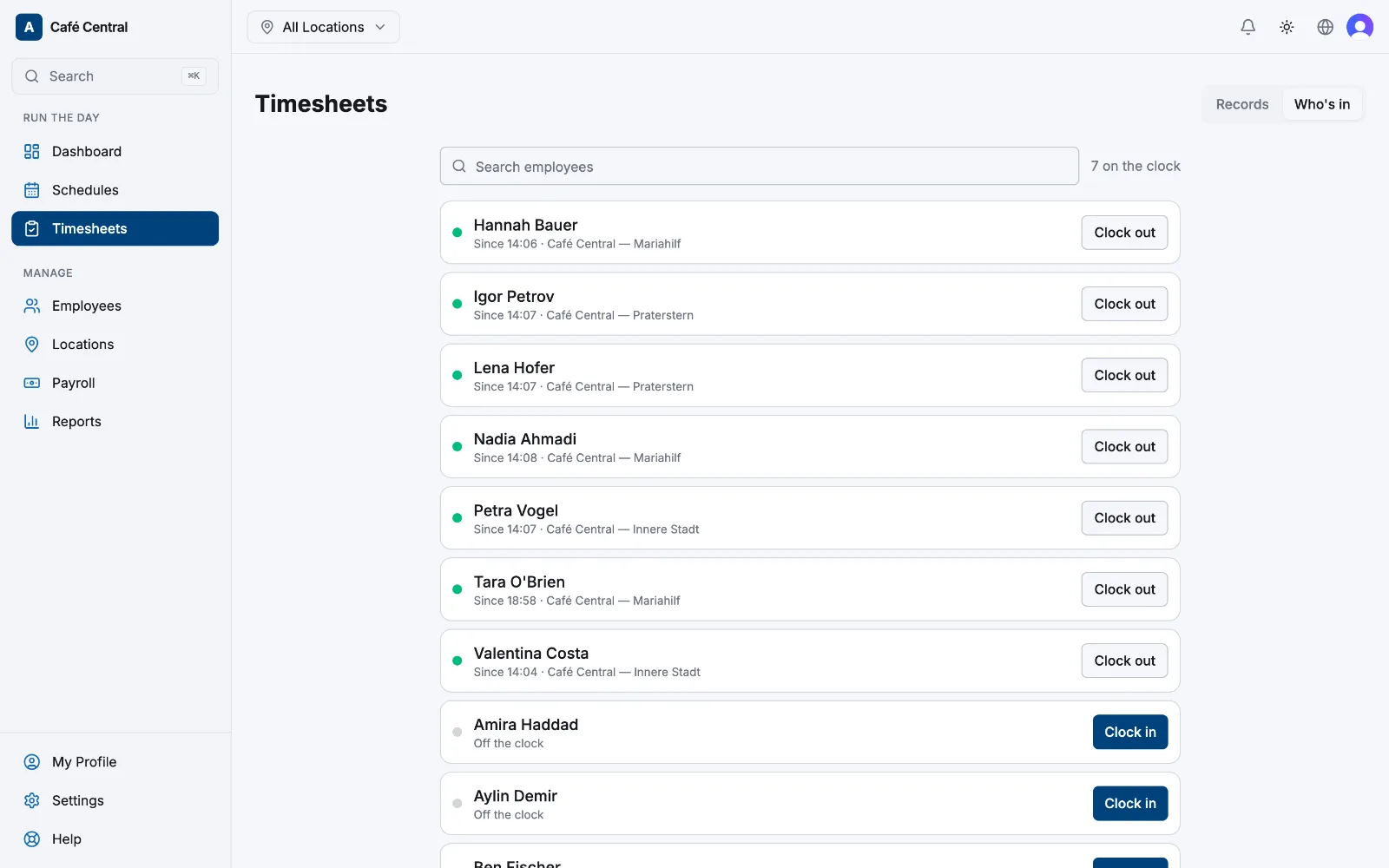
Clocking someone in or out for them
- 1
Find the person
Search by name, then select Clock in or Clock out on their row.
- 2
Check the time and location
The Time defaults to now. Adjust it to when the shift really started or ended. A clock-in can't be in the future; a clock-out must be after the clock-in. If they work at more than one of your locations, pick the right one.
- 3
Confirm
Select Clock in or Clock out. Starting a shift notifies the employee, and either action is recorded in the audit log with your name.
Managers can only do this at a location where an admin has enabled Allow managers to manually add timesheet entries (Locations → (a location) → Timesheets). Admins can always do it.
Related articles
Still need help?
Contact support