
Approve your first timesheets
See where your team's clocked hours land, review the first week, and sign off before those hours count.
Every time someone clocks in and out, their hours land on the Timesheets page. Before those hours count toward pay, you give them a quick check and approve them. Here's how to work through your first week.
- 1
Open Timesheets
Select Timesheets in the sidebar. You land on the Records tab, with summary cards for Scheduled, Actual, Employees and either Total Cost or Issues across the top.
- 2
Clear any flagged clock-outs first
If a shift needs a second look (a forgotten clock-out that Atteny closed automatically, a failed location check, or an unusually long shift), it appears at the very top in a Pending Clock-out Verifications card. Select Edit to correct the clock-out time, or Approve to accept it as it is.
- 3
Pick the week you want to review
Use the Daily / Weekly / Monthly toggle and the arrow buttons to move to the right period. To focus on one person, open the All Employees dropdown and pick their name.
- 4
Review each record
Each row shows the clock in, clock out and break, then Expected hours against Actual hours, the +/− variance, and any Flags (late start, missed break, overtime, and so on). Anything unusual is called out so you don't have to hunt for it.

- 5
Approve the hours
Select Approve on a row to sign it off. You can add an optional note. If something's wrong, select Reject and give a short reason instead. Either way, the employee is notified of the result.
What's next
Once a week is approved, those hours are ready to feed into reports and payroll.
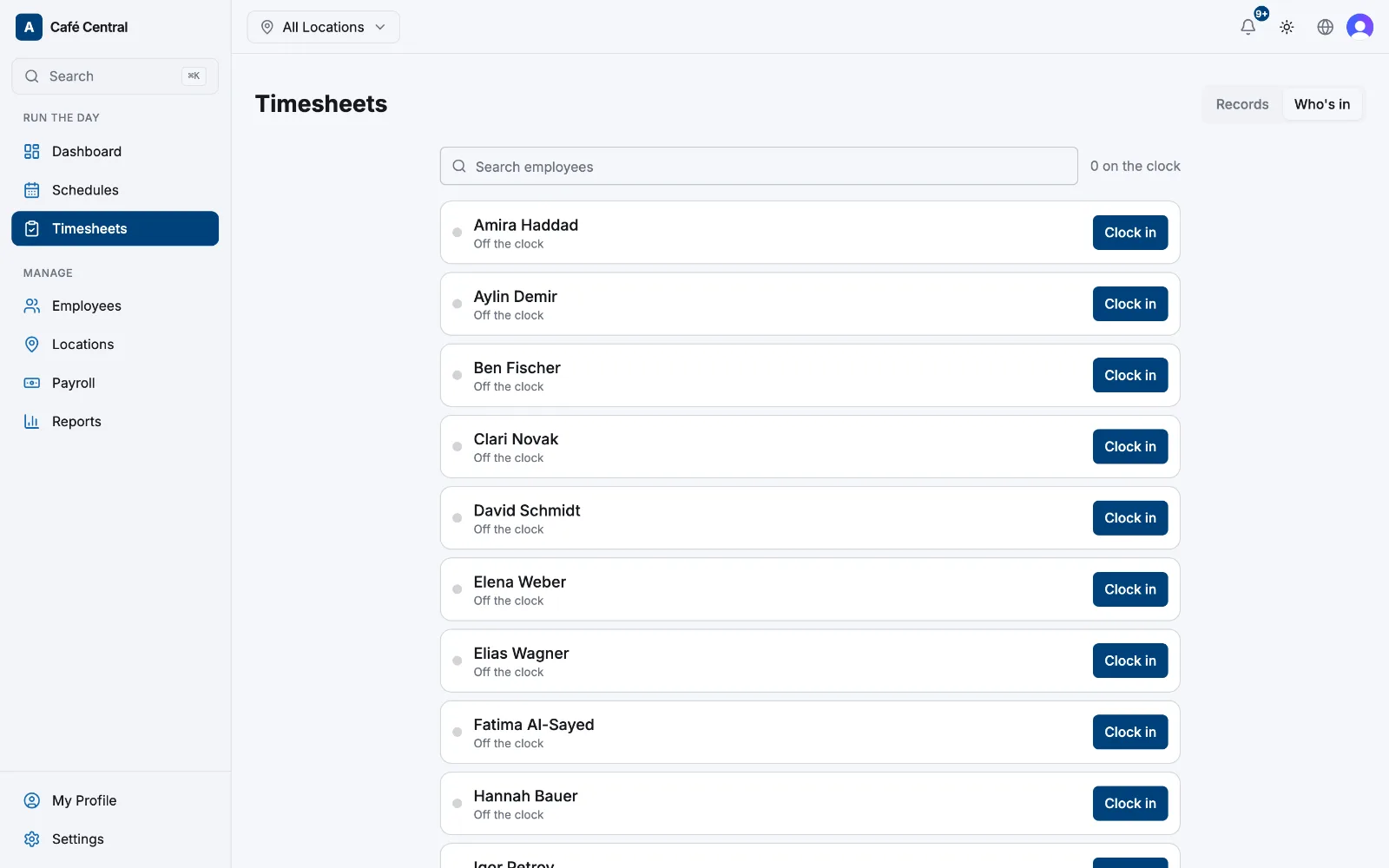
- Watch the floor live. Switch to the Who's in tab (next to Records at the top of the page) to see who is currently clocked in, in real time.
- Pull the numbers. When you're ready to hand hours to your accountant, head to Reports to export a clean summary.
For a deeper look at rejections, overtime approval and manual edits, see Reviewing and approving timesheets.
Related articles
Still need help?
Contact support