
Download or print the schedule
Get the schedule as a PDF grid to print and pin up, or as a CSV list for a spreadsheet. Employees can download their own.
The schedule comes out of Atteny in two forms. The PDF is the week as a grid, people down and days across, made to print. The CSV is a list with one row per shift, made to sort and filter in a spreadsheet.
Download the team's schedule#
- 1
Open the week
Open Schedules in the Week view and move to the week you want (in the day view a CSV holds that day only). To get one location only, choose it in the location switcher in the top bar first.
- 2
Select Download
Download is at the top right of the page, next to the title.
- 3
Choose the format
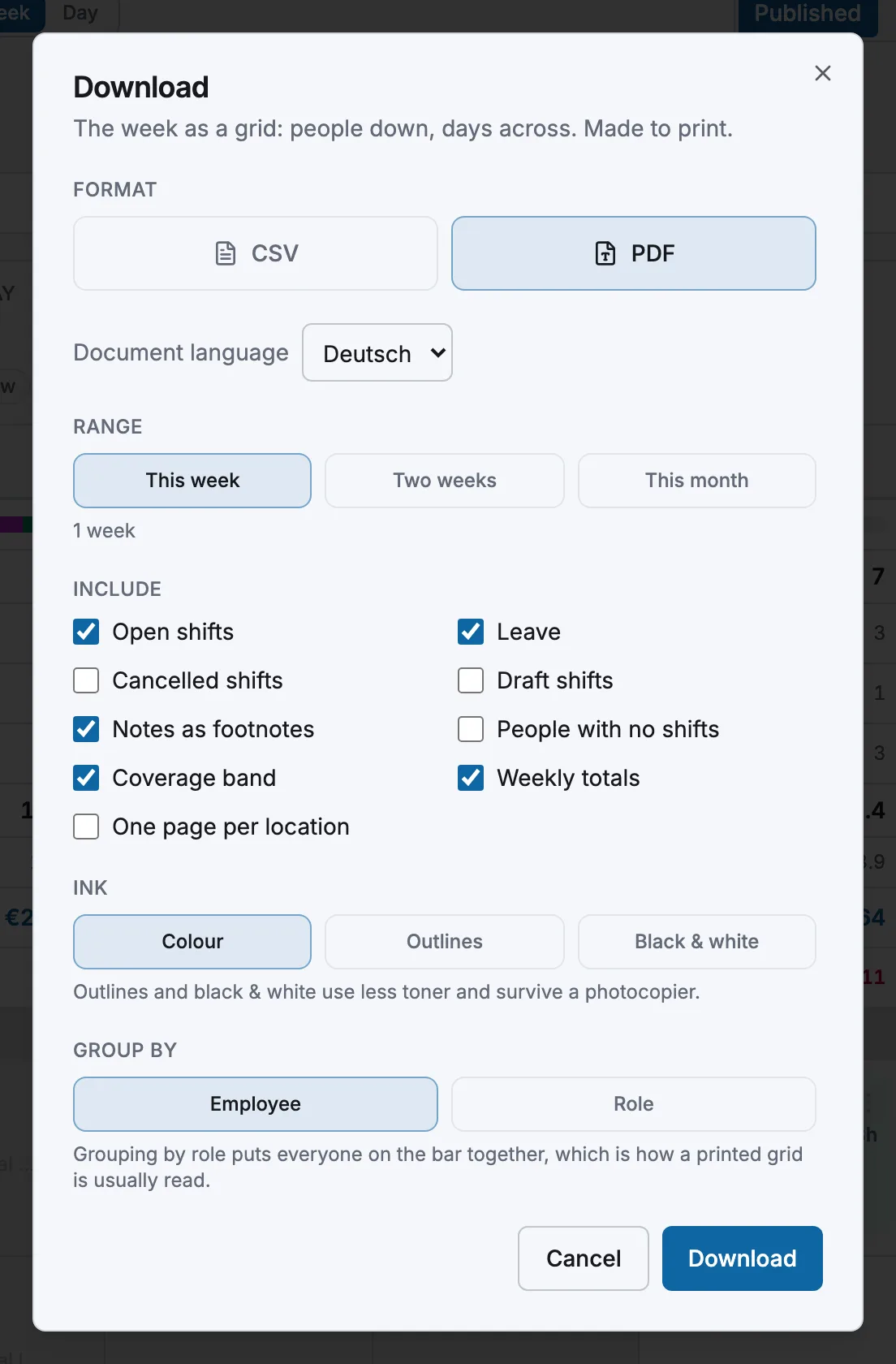
Under Format, pick CSV or PDF. The options below change with the format.
- 4
Set the options and download
Set the options described below, then select Download at the bottom. A PDF is built on the server, so the button reads Preparing… for a moment. When the range holds nothing to export, the dialog says so and the button is off.
- 1
Open Manage Schedule
Open More, then Manage Schedule, and move to the week you want. To get one location only, choose it at the top of the screen.
- 2
Tap the download arrow
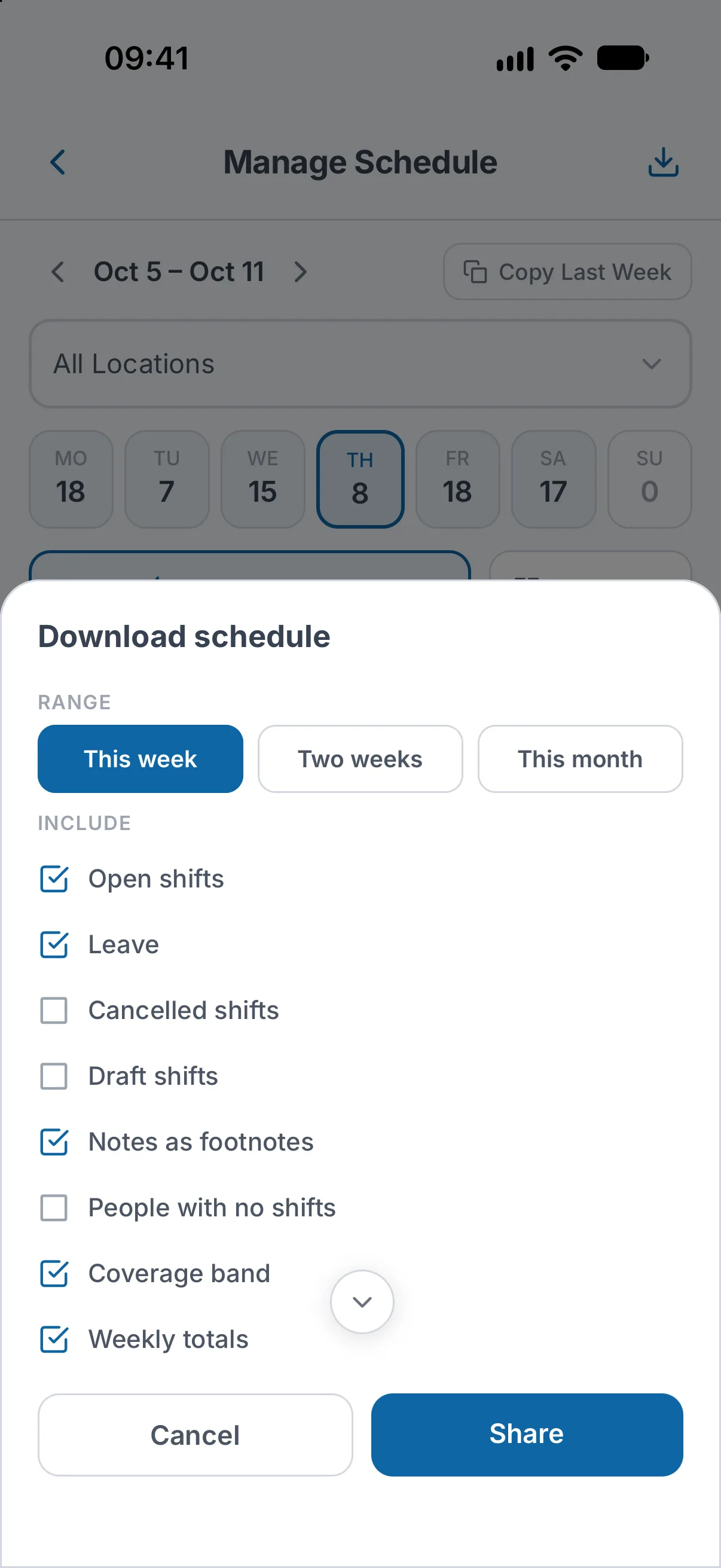
It is at the top right. The Download schedule sheet opens.
- 3
Set the options and share
Choose Range, tick what to Include, pick Ink and tap Share. Your phone then offers its usual ways to save, print or send the file.
The phone makes the PDF only, and needs a connection to build it. For a CSV, use the web.
PDF options#
- Range: This week, Two weeks or This month. The line under the buttons says how many weeks the file will hold.
- Include: tick what the grid should show. Open shifts, Leave, Notes as footnotes, Coverage band and Weekly totals start ticked. Draft shifts, Cancelled shifts, People with no shifts and One page per location start unticked.
- Ink: Colour, Outlines or Black & white. The last two use less toner and stay readable on a photocopy.
- Group by (web only): Employee or Role. The role is the shift's area (see Areas): each person keeps one row, listed under the area they worked most that week.
CSV options (web)#
- Range. A CSV covers the week or day on screen. A wider Range picked under PDF applies to the CSV too: for two weeks or the month, choose PDF, pick the range, then switch back to CSV.
- Columns. The employee and the date are always in the file. Tick the other columns you want. Role (the shift's area), Break (min) and Notes start unticked.
- Order by: Employee, Date or Location. This sorts the rows.
- Separator: Comma , or Semicolon ;. Pick the semicolon if a comma file opens as one single column in Excel. Your browser remembers the choice.
Language and what is recorded#
PDFs and the headings of a CSV are written in your company's document language, which an admin sets under Settings, General. With Document language in the dialog, or Document language in the phone's sheet, you can pick another language for this one download.
Every schedule PDF is written to the audit log as a document export, with its file name, and prints a short document code in its footer.
Employees: download your own schedule#
- On the phone: open the Schedule tab and tap the download arrow next to the title. In a company set to Fixed Hours the phone has no download arrow: use the web.
- On the web: open Schedules and select Download.
You get your own shifts only. The options that concern the whole team, such as open shifts, drafts and the coverage band, are not offered. More in How do I see my schedule?
No download button where you expect one? See I can't see a button or page someone else has.
Related articles
Still need help?
Contact support