
Your dashboard
What each card on the Dashboard and on the phone's Home tells you, and where it takes you.
The Dashboard is the page you land on. It shows who is working now and what waits for a decision.
The cards at the top#
- Who's In: the big number is how many people are on the clock now. The number after the slash, shown while someone is due, is how many should be on the clock now. Rows below name the people who are not clocked in or who arrived late. See Who is in right now.
- Pending Approvals: how many items wait for a decision, with Oldest and Hours. Approve on its row jumps down to the Action Center.
- Coverage & risk: shown only in Custom Shifts. Its lines can show today's open shifts that have not ended yet, people today's shifts still need ("unstaffed today": no open shift offers these), people over or close to their weekly contract and people on leave. Each line has Plan or Review.
- Estimated wage cost, under Labour cost: Today, This week and Month to date. It is shown only while Payroll is on, to admins, and to managers for their own locations once an admin has switched on Managers can see costs for all roles. It is a running estimate: shifts still running count up to now, and every hour is priced at the plain hourly rate with nothing added for overtime. See What "estimated" means on money figures.

The Action Center#
The Action Center lists what waits. Besides All it has a tab for each kind that has something waiting. A kind with nothing waiting has no tab.
- Timesheets: finished pending entries, each with Edit and Approve. There is no reject here.
- Verification: shifts under review. They can only be approved from the review queue, so the row has Review only, which opens Timesheets.
- Overtime: extra hours waiting for a decision. The tab holds only shifts clocked in this week or last week. Older ones stay on the Timesheets page, in the shift's own period.
- Leave: the five newest waiting requests. Review opens Leave Requests, where every request is listed.
- Swaps: swaps that wait for approval. Review opens Shift Swaps, where you decide.
- Availability, while Availability is on: the number of availability changes that wait. Review opens Availability, where you decide.
Requests for time off in lieu are not on the Dashboard. Decide them on Time off in lieu: see Time off in lieu (TOIL).
Beside the list, Today's Activity shows today's clock-ins, clock-outs and breaks.
The getting-started checklist#
Until every step is done, admins see the Getting started card at the top of the Dashboard. A step ticks itself when its work is done, and when the last one is ticked the card goes away. Two examples: the team step is ticked as soon as the company has a second active person or one pending invitation, and the basics step once a time zone and a currency are saved. Changing your modules reopens a finished checklist. A checklist you hid stays hidden. Run guided setup opens the guided setup: see Use the guided setup and Replay the tour or setup guide.
One location, and search#
The location control in the top bar starts on All Locations. Pick a location and the Dashboard, Timesheets, Who's in, Schedules, Shifts and Availability show that location only. A reload puts it back on All Locations. A manager who picks a location they are not assigned to sees nothing on the Dashboard, unless an admin has switched on Allow managers to see data beyond their own location: see What managers can see.
Search at the top of the sidebar finds a page, a setting or a help article. It does not search people or shifts.
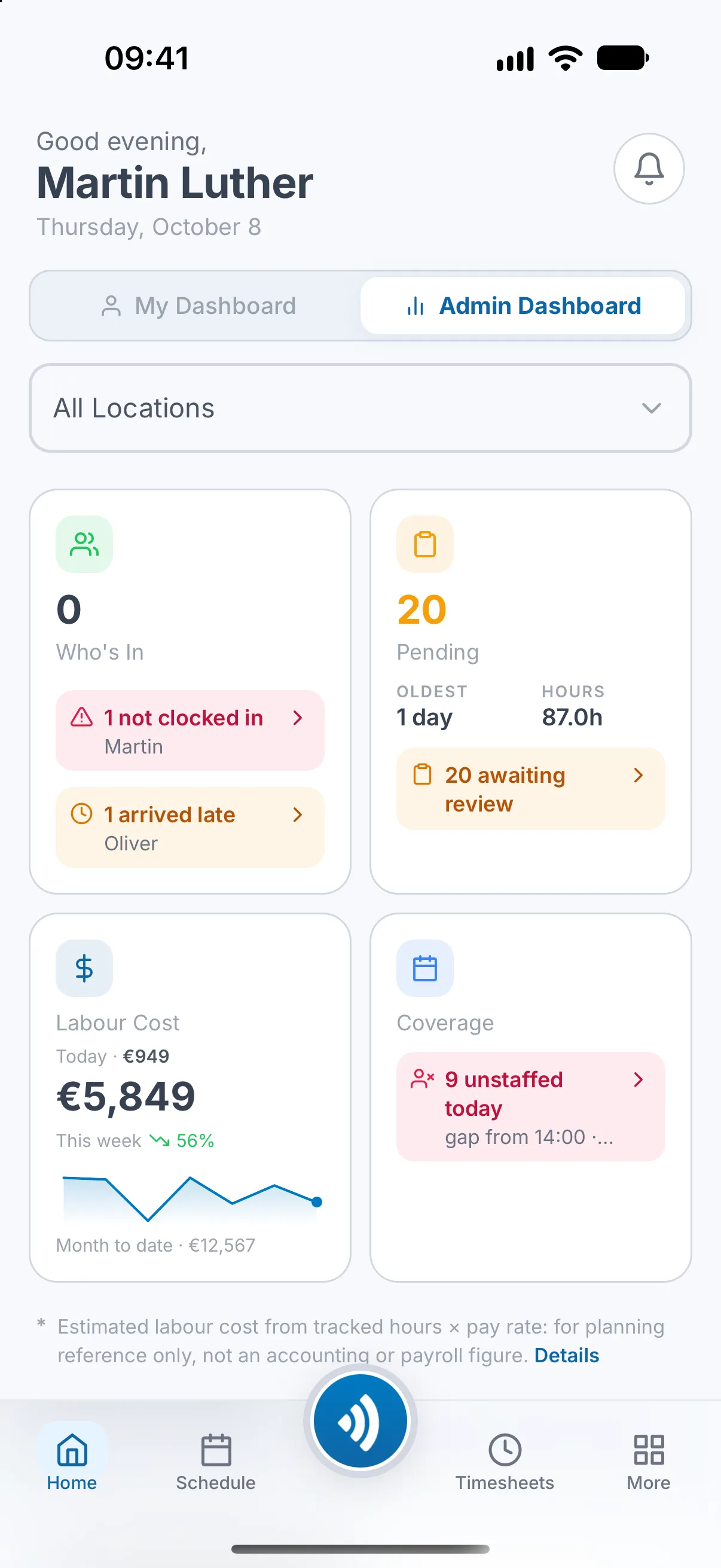
Managers and admins have two views on Home: My Dashboard for your own shift and hours, and Admin Dashboard for the team.
- Who's In shows the same two numbers as the web card. Tap it to open the board.
- Pending opens the full Action Center screen.
- Labour Cost follows the same rule as on the web: Payroll on, and for managers the cost switch.
- Action Center on Home lists what waits. A person marked Not Arrived Yet who has a phone number on their profile gets a phone icon that calls them and a message icon that offers Open WhatsApp or Send SMS.
- The location filter at the top offers an admin every location and a manager their own.
The employee's dashboard#
On the web an employee sees their own figures: Hours Worked, Total Earned, Upcoming Shifts, Timesheet Status and This Week's Schedule. Upcoming Shifts and This Week's Schedule are shown while Scheduling is on.
- Total Earned, shown while Payroll is on, adds up this month's finished shifts. Rejected shifts are left out. Shifts under review are left out too and shown on their own line. It is an estimate, not official pay, and can differ from the payroll month.
- Employees never clock in on the web. That is done in the phone app, where Home shows the Active Shift card during a shift.
A card is missing? See I can't see a button or page someone else has.
Related articles
Still need help?
Contact support