
Managing from your phone
What admins and managers can do in the phone app's Manage menu, who sees which row, and what stays on the web.
The phone app is not only for clocking in. Managers and admins have a Manage group on the More tab for the daily work: approving, checking who is in, changing the schedule and inviting people. Company settings stay on the web.
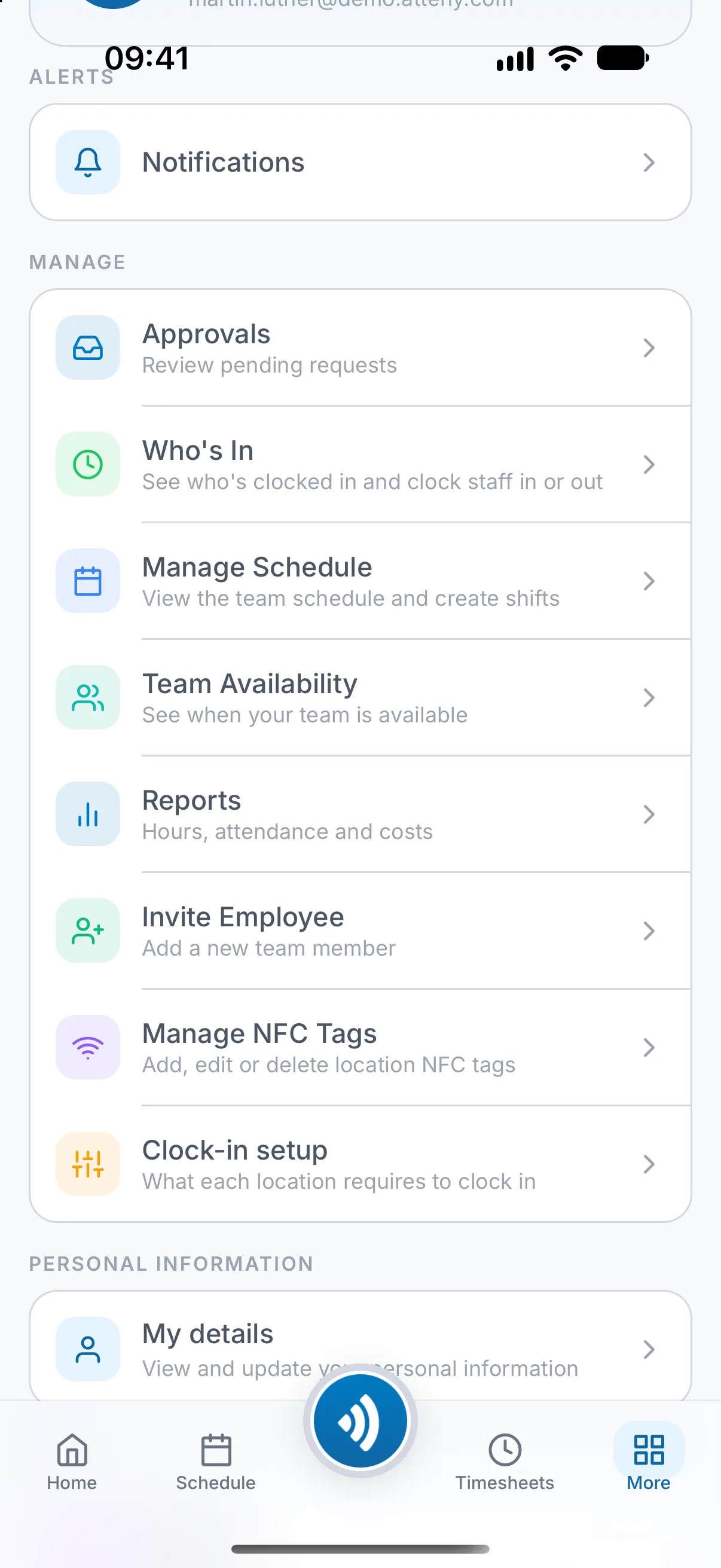
The rows, one by one#
- 1
Approvals
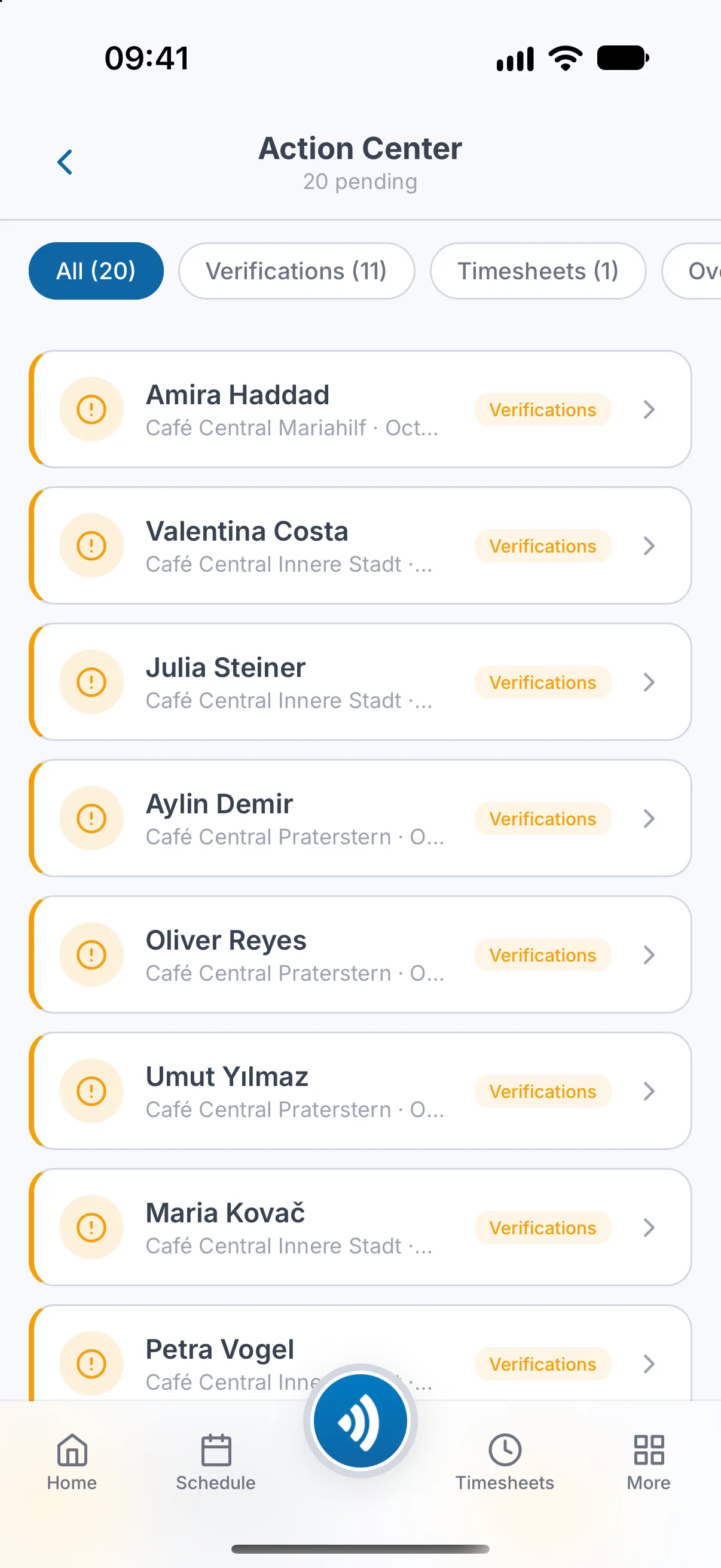
Approvals opens the Action Center screen: one list of everything that waits, with a filter chip for each kind that has something waiting. The kinds are Verifications, Timesheets, Overtime, Leave, Shift Swaps, Availability and Time Off In Lieu.
- A pending timesheet has Approve, and Reject with a reason. Where a location needs an admin for the entries a manager added or edited, a manager's approval of such an entry is refused.
- A shift under review can be approved here. One exception: a shift a manager started from Who's In at a location that needs an admin can only be approved by an admin. Rejecting a shift under review is done on the web: see Review held shifts: the verification queue.
- The Leave list holds the five newest waiting requests. An older one appears once a newer one is decided. The web lists all of them: see Approving leave requests.
- Requests for time off in lieu are decided here too. Reject asks for no reason and declines at once. See Time off in lieu (TOIL).
- A manager's own requests are not listed.
- 2
Who's In
Who's In opens the board titled On the clock. You can start a shift for someone who cannot do it themselves. An admin can always do that. A manager can only at a location they are assigned to, only where the location lets managers add time entries, and never for themselves. Ending a shift for someone has its own rules: see Who is in right now.
- 3
Manage Schedule
Manage Schedule is shown while Scheduling is on. A phone opens it on today, with a row of seven day cells above. New shifts chooses Published or Draft. A manager can change shifts only while an admin has Allow managers to edit schedules switched on, at their own locations, and never their own shift. In Fixed Hours the screen has no add, copy or auto-schedule. See Building the week.
- 4
Team Availability
Team Availability is shown while Availability is on. It shows one card per person for the week you choose, to read only. Setting someone's availability and sending reminders are on the web. See Reviewing team availability.
- 5
Reports
Reports has the same five cards as the web: the four reports and the working-time records. Admins also see a Scheduled reports card. On Starter the row stays visible with a Pro badge. See Reports.
- 6
Invite Employee
Invite Employee sends an invitation. A manager can invite employees only, and only to a location they are assigned to. The role, the pay rate and the overtime choice are offered to admins only. When every seat is in use the row carries a Pro badge and the form cannot send: Starter includes 5 people. The list of invitations, with resend and cancel, is on the web only. See Invite your team.
- 7
Manage NFC Tags (admins)
Manage NFC Tags is where an admin registers the tags staff tap to clock in. The plus sign opens Add NFC Tag. See NFC tags.
- 8
Clock-in setup (admins)
Clock-in setup holds a location's clock-in switches: Require an NFC tag, Require GPS confirmation, Manual clock-ins need approval, Also hold NFC and GPS clock-ins (shown only while the one before is on) and Also review offline punches that proved presence. Each switch is saved the moment you flip it. Atteny refuses a change that would leave the location with nothing confirming presence. The GPS point and the radius are set on the web only. See Clock-ins that wait for a manager's approval.
Outside the Manage group#
- Home has a team view, Admin Dashboard: see Your dashboard.
- Timesheets has a Team view: see Reviewing and approving timesheets. Its Add entry button is covered in Editing and adding timesheets.
What stays on the web#
- Company settings. The phone has no company settings pages. Apart from the clock-in switches above, the secure clock-in switch under Manage NFC Tags, an admin's scheduled reports and the business type in the welcome dialog, which switches features on and off for the whole company, no company or location setting can be changed on the phone.
- Timesheet corrections. On the phone you can change times only on an entry that waits in Approvals, and end a running shift in Who's In. Editing any other entry, changing breaks and deleting are on the web: see Editing and adding timesheets.
- Areas. They are set up on the web only.
- Cancelling someone's approved leave. The phone only lets people cancel their own leave.
- Releasing a person's registered phone. See One phone per person: device binding.
- Bank details and social security numbers. The phone never shows or asks for them.
Is a row missing on your phone? See I can't see a button or page someone else has.
Related articles
Still need help?
Contact support